



Configure Broadcasts publisher permissions in Appspace to control which Publishers can target devices and users. Account Owners set the default for every Publisher and can add actions for specific users or groups at a location. After you save, Select Targets keeps Devices and Users on screen, and a missing action makes that section read-only.
For: IT Administrators — Broadcasts publisher permissions
In this article:
Prerequisites
- Requires the Account Owner role. Only an Account Owner sees Settings in Broadcasts and can stay on that page.
- A Location Admin can open Broadcasts. A Publisher can open Broadcasts. A Publisher is a user who can edit broadcasts. Anyone else returns to their default page.
General
Publisher permissions on General applies to Publishers. A Location Admin receives Devices, Users, and Can create critical broadcasts for the location they administer, and this setting does not change that.
-
Go to Broadcasts, then Settings, then General.
-
Open Publisher permissions and select a value.
-
Select Save.
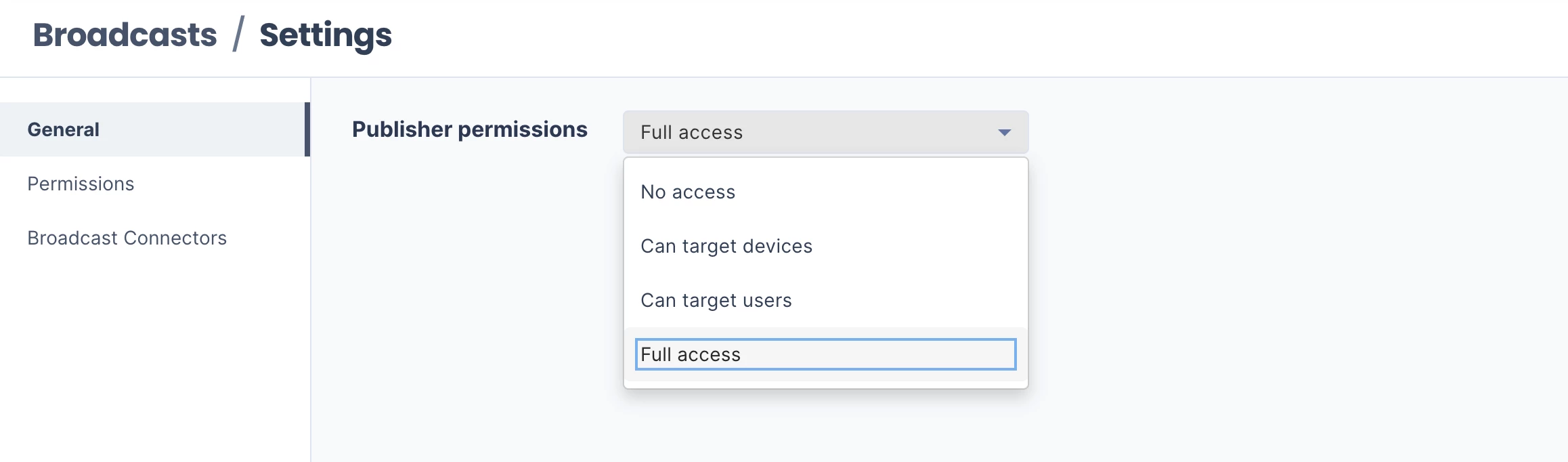
Save and Cancel appear after the value changes. Cancel restores the previous value.
| Publisher permissions | What a Publisher receives |
|---|---|
| No access | Neither target action |
| Can target devices | Devices |
| Can target users | Users |
| Full access | Devices and Users |
On Select Targets, Devices and Users both stay on the page. Without the matching action, that section is read-only and its dropdown is disabled.
Full access grants Devices and Users. Can create critical broadcasts is a separate action. On Edit Broadcast, Priority includes Critical only when that action is granted.
Permissions
A Permissions row adds actions for specific users or groups at one location. The row is added to the General grant for the Publisher’s current location. A narrower row leaves a broader General grant in place.
-
No access plus a row leaves only the actions on that row.
-
Can target devices plus a row for Can target users leaves both sections.
-
Full access plus a narrower row still leaves Devices and Users. The row can add Can create critical broadcasts.
With no rows, the page shows No broadcast permissions and Set up broadcast permissions for more granular control.
Add a permission
-
Go to Broadcasts, then Settings, then Permissions.
-
Select Add. When rows already exist, the button label is ADD.
-
In User, type to add users or groups.
-
In Location, select a location you administer. The list shows only those locations, and it opens on your current location.
-
Under Actions, select at least one of Can target users, Can target devices, or Can create critical broadcasts.
-
Select Save.
Save stays unavailable until a user or group, a location, and at least one action are set.
The row lists Name, Location, and Permission. The permission text is Target users, Target devices, or Create critical broadcasts. A group with no email address shows User Group under the name.
Edit a permission
-
Select the name, or open the row menu and select Edit.
-
Change the location or the actions. The title is Edit, the name, and Permissions. The user or group stays as it was.
-
Select Save.
Save stays unavailable until a location and at least one action are set.
Delete a permission
-
Open the row menu and select Delete.
-
On Confirmation, select Delete.
The message says you are about to delete permissions for that name and asks whether you wish to proceed.
Select the checkbox on more than one row to delete them together. The message then says you are about to delete that number of broadcast permissions.
Example
How can I allow only certain individuals to use Broadcasts and limit others?
Set Publisher permissions under General to No access, then add those people under Permissions.
-
On General, set Publisher permissions to No access and select Save.
-
On Permissions, add each person or group and select the actions they should have.
Those people receive only the actions on their row. Other Publishers receive neither target action.