



Description
Guide to use remote debugging with Samsung via Weinre.
Prerequisites
- Nodejs (https://nodejs.org/en/)
- Weinre (https://github.com/apache/cordova-weinre) -requiresnodejs
- Installing Weinre. Run this command in terminal/command prompt:

- Run the weinre server. Run this command in terminal/command prompt:

- Installing Weinre. Run this command in terminal/command prompt:
Troubleshooting Guide
Accessing Weinre:
- Browse http://localhost:8081.
- Select the link, debug client user interface:
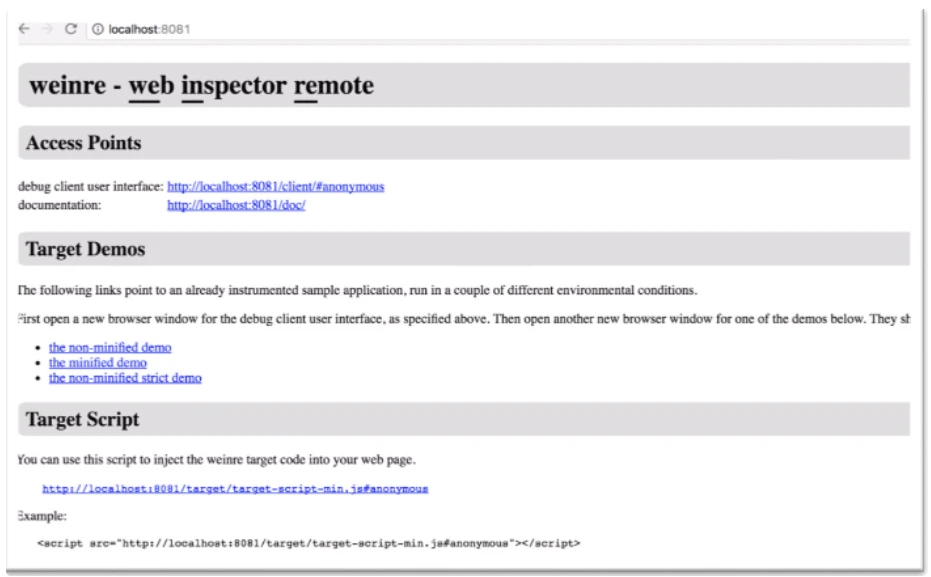
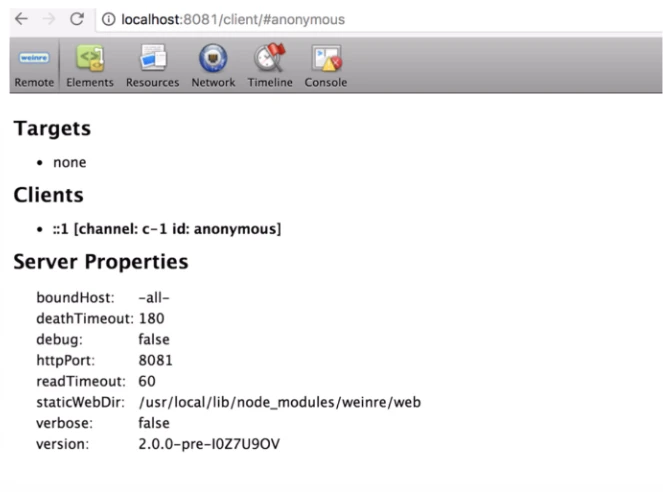
- The debug client page will be displayed:
Modifying the Appspace package to insert the remote debugging tool:
- Extract the Appspace SSSP package for Samsung. You will need to extract it into a few levels: AppspaceSSSP3.zip > Portrait.zip/Landscape.zip (depending on the chosen orientation) > Appspace:
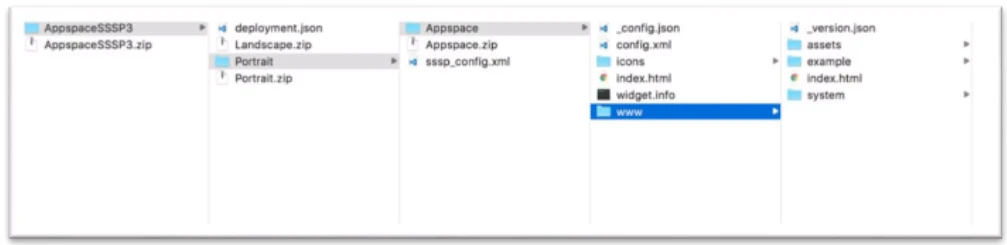
- Edit the index.html located in the www folder, as shown below:


- Transfer the Appspace zip file (as backup) on your desktop.
- Select all contents in the Appspace folder and zip it. Delete the Appspace folder once the zip file has been created.
- Only the Appspace zip file and the sssp_config.xml file should be in the landscape/portrait zip file.
- Modifying the SSSP file - sssp_config.xml. Change the version - by adding number behind the version (Do note that this version does not reflect on the Appspace app . This is just a file used by Samsung)

-
Copy both the Appspace.zip and the sssp_config.xml to the host server.
- On the Samsung screen, change the launcher URL to point to the hosted server and launch the app.
- If the config file was setup correctly in step (5), you should see the updated URL in the Samsung screen, as shown below:

-
If you dont see this, you need to repeat step (5).
- If the config file was setup correctly in step (5), you should see the updated URL in the Samsung screen, as shown below:
-
When the app launches at the weinre browser, you should see this:

- The targets and the clients should be the same color (green), and you should be able to see the console, which outputs further information regarding the player, as shown below:

Note: sometimes the weinre connection is lost. Select restart again in Appspace App.