




Appspace App Devices support fallback content to ensure a seamless viewing experience when primary content is unavailable, such as during content delivery interruptions or device unregistration. By configuring fallback media at the supported level, administrators can maintain continuity and protect the screen experience from unexpected gaps. Fallback content is not displayed in preview mode and is automatically cleared when a device is unregistered.
This article provides instructions for administrators on configuring fallback content for Appspace App Devices on the platform.
Note
Fallback content currently supports only videos and images.
Prerequisites
- An Appspace Account Owner or Location Admin assigned a Platform User license.
- Supported Appspace App Devices and Operating Systems.
Configure Fallback Content
Note
This configuration is only applicable to images and videos.
Follow the instructions below to configure fallback content.
- Log in to your Appspace console.
- Navigate to Devices from the Appspace menu.
- Select Settings.
- In the Settings select the Locations tab.
- In the Overview dashboard, navigate to Fallback Content and choose one of the following options:
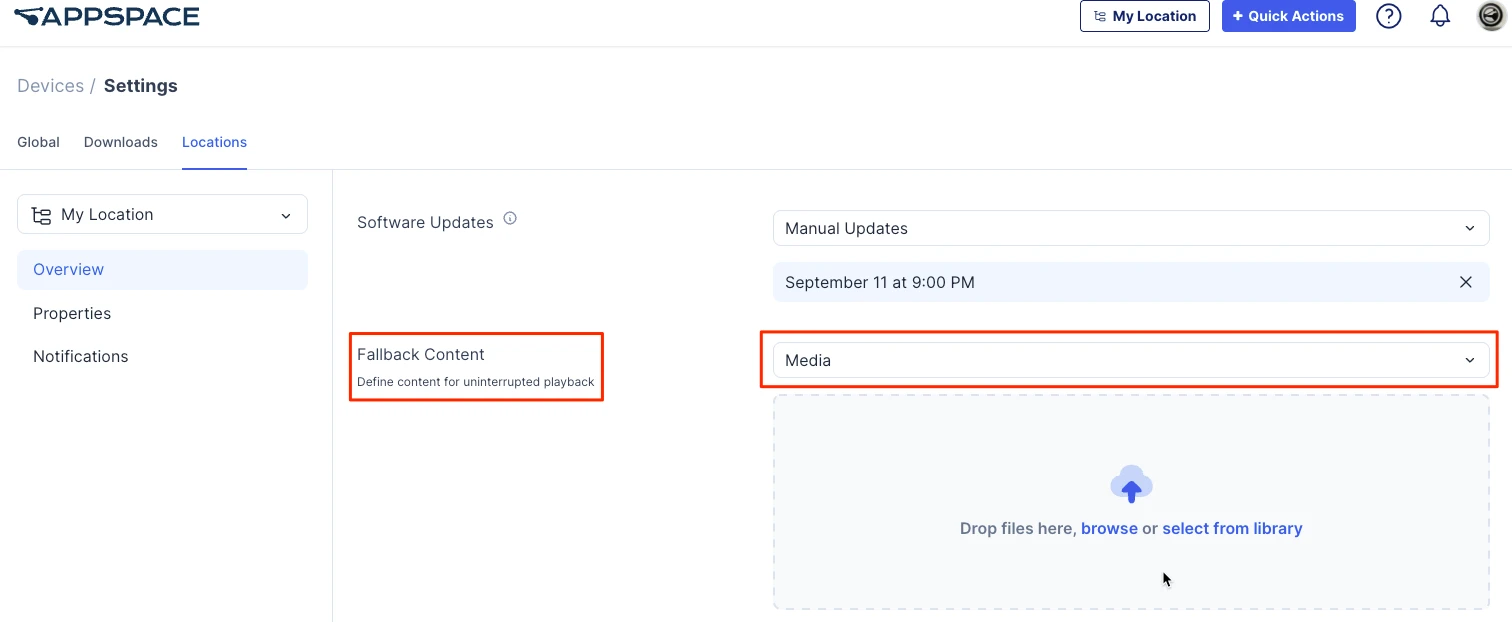
- None – Removes the fallback content. No content will play when other content is unavailable.
- Media – Upload files by dragging and dropping, browsing, or selecting from the library.
Note
The Select from Library option applies only to images and videos, and is not supported for cards.
- Once you select your desired files, click Add.
- The selected files will appear in the list.