

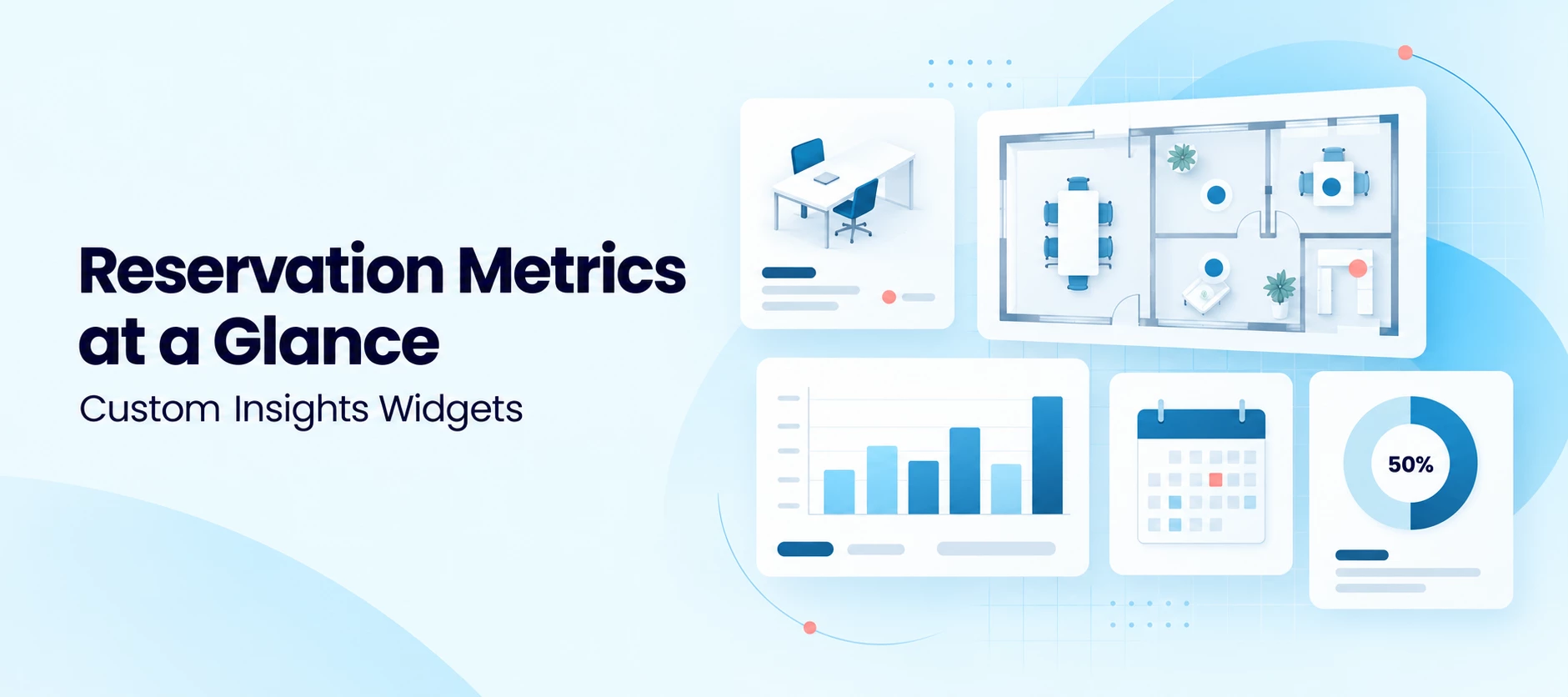




Understanding how desks, rooms, and other workspace resources are reserved helps you plan capacity and make informed workplace decisions. An Insights dashboard brings related metrics together, including workspace reservation counts, bookable desk inventory, booked hours, and utilization.
Use an AI assistant to retrieve data through natural-language prompts, then add those prompts to custom widgets for regular review. This guide covers dashboard setup, example prompts, and ways to keep your calculations consistent.
Create Your Dashboard
- In the Appspace console, open the menu and select Insights under Admin.
- Click + Add, enter a dashboard name, and click Create.
- Click Create Widget, then Add Custom Widget.
- Enter a title and description, select the Preferred Column Span, and click Add.
- In the Query Builder, select Assistant as the data source.
- Select the appropriate AI assistant. Enter a prompt that includes the location, date range, workspace resource type, and metric you want to display.
- Under Execution, choose whether to run the query as the Viewer (the signed-in user) or Owner (the widget creator).
- Configure Cache max age and Auto refresh expiry as needed, then click Apply.
- Add additional widgets and click Save to save the dashboard.
Write Specific Prompts
The prompt shapes the result. Always include a date range and a named location, even when copying an example. A general request such as “Show desk usage” leaves the assistant to interpret the scope and calculation.
- Include dates: Use an explicit range, such as September 1–30, 2026, or a rolling period such as “last 30 days.” Fixed dates support repeatable comparisons; rolling periods move as time passes.
- Name one location: Add the exact location and, when relevant, floor. Avoid “all locations” where possible. Broad requests can take longer and may not provide the detail you need.
- Use workspace terminology: Say “workspace resources that are desks” to identify the resource type, and “workspace reservations” to identify the bookings you want to measure.
- Define availability: Bookable means a workspace resource is enabled for booking. Unreserved means it has no workspace reservation during a specified date and time. If you use active, define it explicitly—for example, bookable and unreserved during the selected time window.
- Define the hours: State whether reporting covers an 8-, 10-, or 12-hour booking window, or 24-hour availability. Booked hours measure reservation time; bookable resource hours measure total booking capacity across resources before reservations are subtracted. Use the same window and time zone across related widgets.
Example Workspace Reservation Prompts
Specify the location, floor, and reporting period in each prompt. Use the same scope across related widgets so the results are comparable.
Before running a prompt, replace every instruction in parentheses with your own information and remove the parentheses. For example, replace (enter location name) with Dallas Office. For all examples, exclude canceled workspace reservations. For daily hour-based calculations, split reservations spanning multiple dates into daily portions.
Most and least reserved resources
For (enter location name), (enter floor name), during (enter date range, such as September 1–30, 2026), show the workspace reservation count for each workspace resource that is (enter resource type, such as a desk or meeting room), ranked from most to least reserved. Include bookable resources with no workspace reservations.
Available desk inventory
For (enter location name), (enter floor name), on (enter date), during (enter start time, end time, and time zone), count workspace resources that are desks and are enabled for booking. Separately show how many are active, defined for this prompt as enabled for booking and unreserved throughout the specified time window.
Average reservation duration by date
For (enter location name), (enter floor name), during (enter date range), show the average workspace reservation duration in hours for each calendar date for workspace resources that are (enter resource type). Count only time within (enter booking days, daily hours, and time zone). Show total booked hours and the number of workspace reservations contributing time, then divide the hours by that count. Show no average when the count is zero.
Available resource hours per day
For (enter location name), (enter floor name), during (enter date range), show total bookable hours across workspace resources that are (enter resource type) for each date. Use (enter booking days, daily hours, and time zone), limited to each resource’s configured booking availability and excluding closures. Calculate capacity before subtracting workspace reservations.
Booked hours by date
For (enter location name), (enter floor name), during (enter date range), show total workspace reservation hours across workspace resources that are (enter resource type) for each date. Count only time within (enter booking days, daily hours, and time zone) and each resource’s configured booking availability, excluding closures.
Utilization percentage by date
For (enter location name), (enter floor name), during (enter date range), show daily booked-time utilization for workspace resources that are (enter resource type). Use (enter booking days, daily hours, and time zone) and each resource’s configured booking availability, excluding closures. Divide total booked hours by total bookable resource hours before reservations are subtracted, then multiply by 100. Flag dates with no bookable hours.
Reservations by booking method
For (enter location name), (enter floor name), during (enter date range), count workspace reservations for workspace resources that are (enter resource type) by their recorded creation source. Show the source labels as recorded, such as mobile app, web portal, or Outlook Plug-In when the data distinguishes those methods. Group missing source values as unknown.
Interpret Results Consistently
Use matching locations, dates, workspace resource types, booking windows, and cancellation rules across related widgets. Confirm how reservations spanning multiple dates are split and how overlapping reservations are counted.
Average duration and utilization answer different questions. Average duration divides booked hours by the number of contributing workspace reservations. Utilization divides booked hours by total bookable resource hours. For example, 10 desks available for eight hours provide 80 resource hours; 40 booked hours represent 50% booked-time utilization.
Booked time and occupied time are different measures. Workspace reservation hours show how long a resource was booked. Actual occupancy requires data that confirms the resource was used.
Check a small date range against known workspace reservations before relying on the dashboard. If booking availability or historical inventory data is missing, review the gap rather than accepting an assumed value.
Dashboard Refresh and File Exports
Custom widgets include cache and auto-refresh settings for displaying results in Insights. These settings do not establish a scheduled CSV or JSON export process.
If you need recurring file extraction, confirm the supported scheduling and export options separately before relying on an automated workflow.