


Configure Insights dashboard permissions in Appspace to control who can open Insights and share dashboards. This article is for account admins who manage Insights access. Use Settings to choose who can create dashboards, and use Permissions to grant View only or Manage access on each dashboard.
For: IT Administrator — Insights Settings and per-dashboard permissions
Prerequisites
-
Account admin access in the Appspace console.
-
Access to Insights in the Appspace console.
Note: Only an account admin can change Insights Settings. Users who receive create or share rights cannot change the module setting.
Configure Who Can Create Dashboards
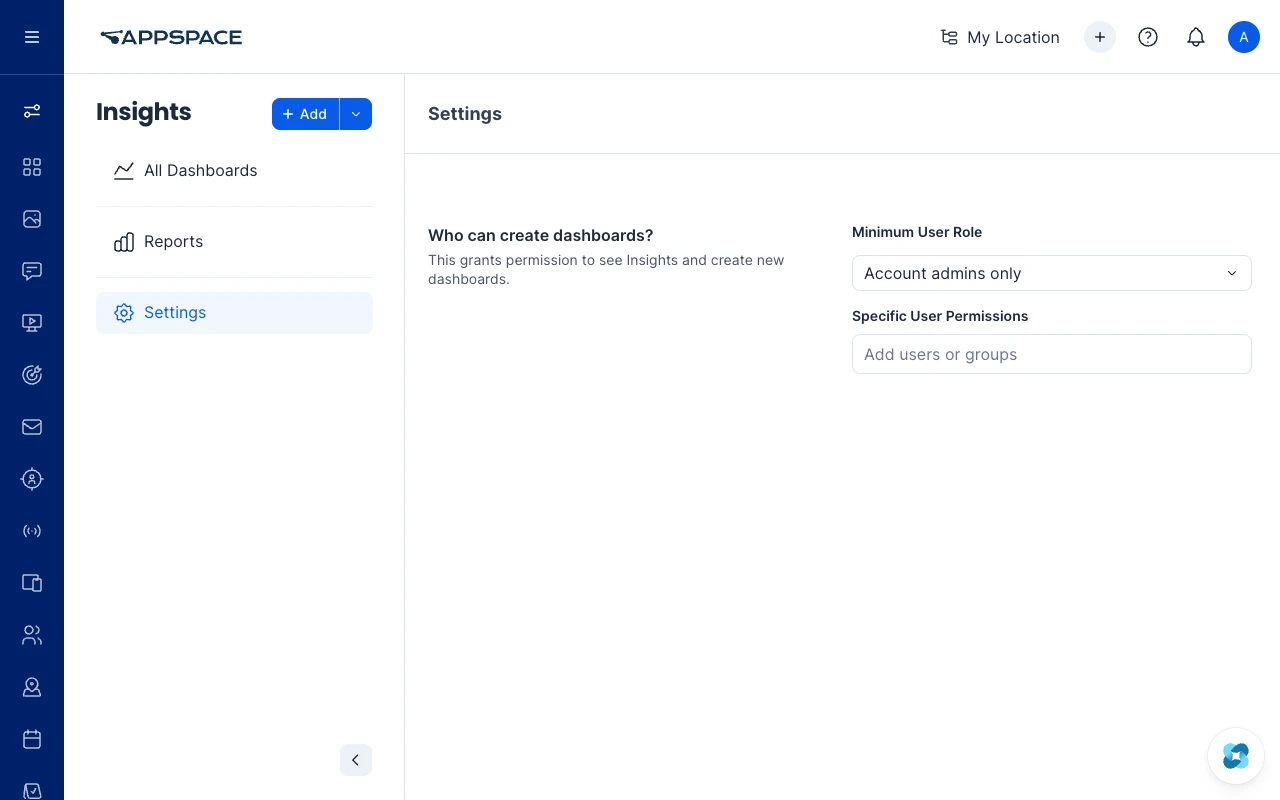
Use Insights > Settings to choose who can see Insights and create dashboards. The setting does not include an Everyone or Anyone option.
-
Log in to the Appspace console.
-
Click the ☰ Appspace menu.
-
Click Insights under Admin.
-
Click Settings.
-
Under Who can create dashboards?, select a Minimum User Role:
-
Account admins only — Only account admins can open Insights and create dashboards (default).
-
Account admins and location admins — Account admins and location admins can open Insights and create dashboards. A location admin administers all networks or at least one network.
-
-
Under Specific User Permissions, enter users or groups in Add users or groups, if required.
-
Click Save.
Users in the selected role, and any listed users or groups, can open Insights and use + Add to create dashboards. Users without this access cannot see Insights.
Note: Reports remains available to account admins and location admins separately from Insights dashboards. Changing Minimum User Role to Account admins only does not remove Reports access.
Share a Dashboard
Grant access to a dashboard for users who need to view or manage it. Custom dashboards support View only and Manage. System dashboards support View only.
-
Log in to the Appspace console.
-
Click the ☰ Appspace menu.
-
Click Insights under Admin.
-
Open the required dashboard.
-
Click the ellipsis (⋯).
-
Click Permissions.
-
In the Permissions dialog, enter a user or group in Add users or groups.
-
Select View only or Manage for that user or group.
-
Click Save.
A View only user can see the dashboard in All Dashboards, favorite the dashboard, export the dashboard, and copy the link when that action is available. A Manage user can also edit the dashboard and open Permissions. Manage does not include Delete, and Manage does not grant the right to create new dashboards.
Note: The owner, an account admin, or a user with Manage can change Permissions. Copy link remains available after grants are added.
Share a System Dashboard
-
Log in to the Appspace console.
-
Click the ☰ Appspace menu.
-
Click Insights under Admin.
-
Open a system dashboard.
-
Click the ellipsis (⋯).
-
Click Permissions.
-
Add users or groups, and leave the level on View only.
-
Click Save.
System dashboards reject Manage. Users who are not account admins see a system dashboard only when they receive a View only grant.
What Users See Without Access
-
Account admins can see every dashboard, including system dashboards and dashboards created by other users.
-
Other users can see only dashboards they created, dashboards shared with them, or dashboards they are a publish-to target of.
-
A user with neither create rights nor a dashboard grant cannot see Insights.
-
Opening a dashboard URL without access does not display that dashboard.