



Control How Provider Calendar Conflicts Are Handled: A Guide to Reservation Restrictions
When employees book rooms in Microsoft Outlook / Microsoft 365 or Google Calendar, those meetings sync into Appspace Reservations. If a booking breaks an Appspace rule — for example it overlaps another reservation, or it violates a constraint — you decide what happens next.
Reservation Restrictions let you keep the meeting active so the organizer can fix it in Appspace, or have Appspace remove the conflicted room automatically. Configure the settings so provider-synced bookings follow your workplace policy instead of a one-size-fits-all cancel path.
Key Benefits
- Organizer-led resolution — Keep valid meetings in Appspace, mark only the conflicted room or occurrence, and notify the organizer to change the room or time.
- Automatic cleanup — Auto-remove conflicted rooms so the resource calendar stays accurate when your policy is to free the space immediately.
- Granular control — Apply Allow or Auto-Resolve separately for single-resource, multi-resource, one-time, and recurring provider bookings.
- Predictable provider sync — Choose whether Appspace evaluates Outlook / Microsoft 365 and Google Calendar bookings against your Appspace rules at all.
- Fewer surprise cancellations — Avoid removing an entire multi-room meeting when only one room is in conflict.
What This Guide Covers
- Where to find Reservation Restrictions
- What the master switch Enforce Appspace rules on 3rd party provider reservations does
- How Allow and Auto-Resolve differ for each of the four conflict toggles
- What organizers, concierge users, and delegates see and can do
- Microsoft 365, Google Calendar, and room-as-organizer caveats
- How to pick defaults for your account and confirm a test booking
Prerequisites
- An Appspace Account Owners role with access to the full settings under Reservations.
- A calendar provider connected to Reservations (Microsoft 365 / Outlook or Google Calendar).
- The Reservation Restrictions controls visible on Settings → General. If you do not see them (and you are an Account Owner, not just a Location Admin), the capability may not be enabled on your account yet — contact Appspace Support.
- A test room (or rooms) you can double-book or constrain without affecting production users.
Steps
1. Open Reservation Restrictions
- Sign in to the Appspace console.
- Go to Reservations → Settings.
- Open General.
- Scroll to Reservation Restrictions.
You should see Enforce Appspace rules on 3rd party provider reservations, and — when that switch is On — four conflict-handling switches under it.
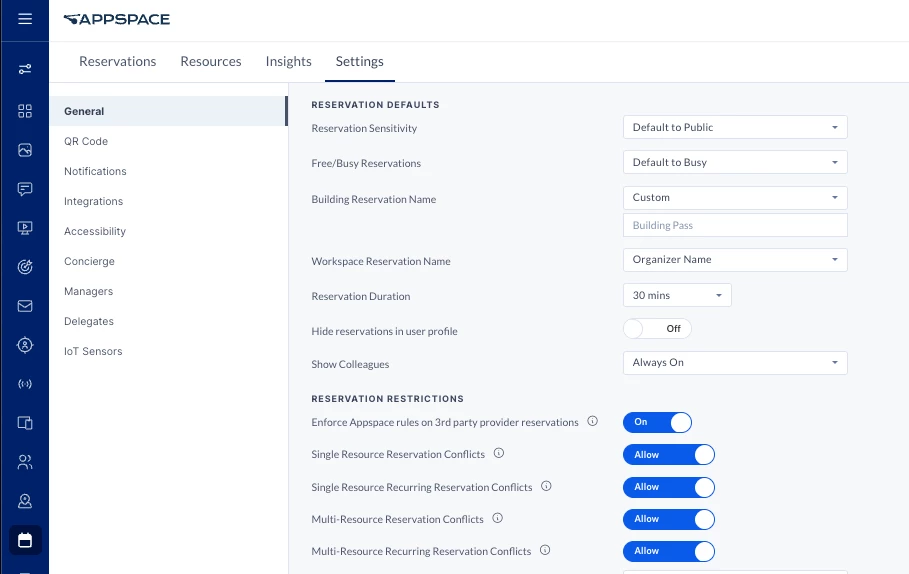
Console route (verified): /console/#!/reservations/settings/general. If you do not see the five conflict-handling switches, the capability is not enabled on the account yet — contact Appspace Support.
These controls apply to reservations that originate in a third-party calendar provider and then sync into Appspace. They do not replace resource constraint rules you configure on individual rooms.
2. Decide whether Appspace should evaluate provider bookings
Enforce Appspace rules on 3rd party provider reservations is the master switch.
| Setting | What Appspace does on sync |
|---|---|
| On | Evaluates the provider-synced meeting against Appspace conflict and booking rules, then applies the four toggles below. |
| Off | Skips Appspace conflict and rule calculation for third-party provider reservations. Detected conflicts on that path are ignored. |
Live (i) tooltip:
Applies Appspace conflict and booking rules to 3rd provider reservations
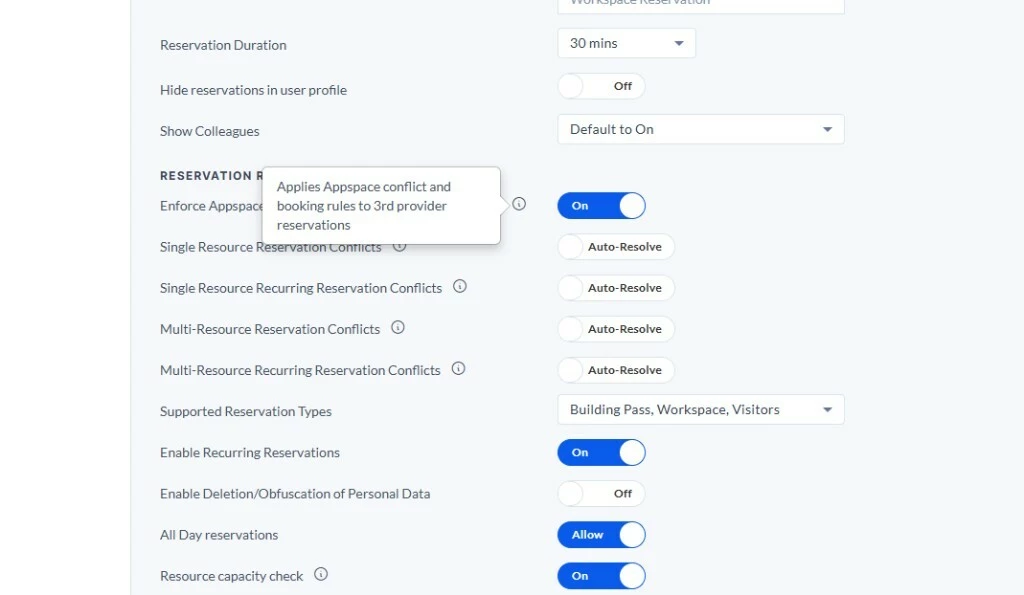
When you change this switch, confirm the dialog before saving.
- On → Off: Turning this setting off will stop the validation of rules implemented in Appspace against any reservations made in the 3rd party provider(GCal or O365). Any conflicts detected will be ignored. Do you wish to continue?
- Off → On: Turning this setting on will enable the validation of rules implemented in Appspace against reservations made in the 3rd party provider(GCal or O365). Any conflict resulting by a reservation violating the rules will be handled based on the settings below. Do you wish to continue?
Leave Enforce On unless your organization intentionally wants provider calendar bookings to skip Appspace rule checks. Turning it Off is the strongest “do not interfere” option; it also means Appspace will not mark or auto-remove those provider conflicts.
3. Choose Allow or Auto-Resolve for each booking type
With Enforce On, configure the four switches. Each supports two states:
- Allow — Keep the reservation active. Mark the conflicted room(s) or occurrence(s). Notify the organizer to resolve the conflict in Appspace. Appspace does not decline the room on the provider for this path.
- Auto-Resolve — Appspace removes the conflicted resource. For a single-resource booking that is the only room, that cancels the Appspace reservation. Appspace declines the room on the provider (see Provider calendar behavior).
The switch label is Allow when the control is on (blue, to the right) and Auto-Resolve when it is off (not “Block” or “Cancel”). Live UI confirms Auto-Resolve is printed on the control.
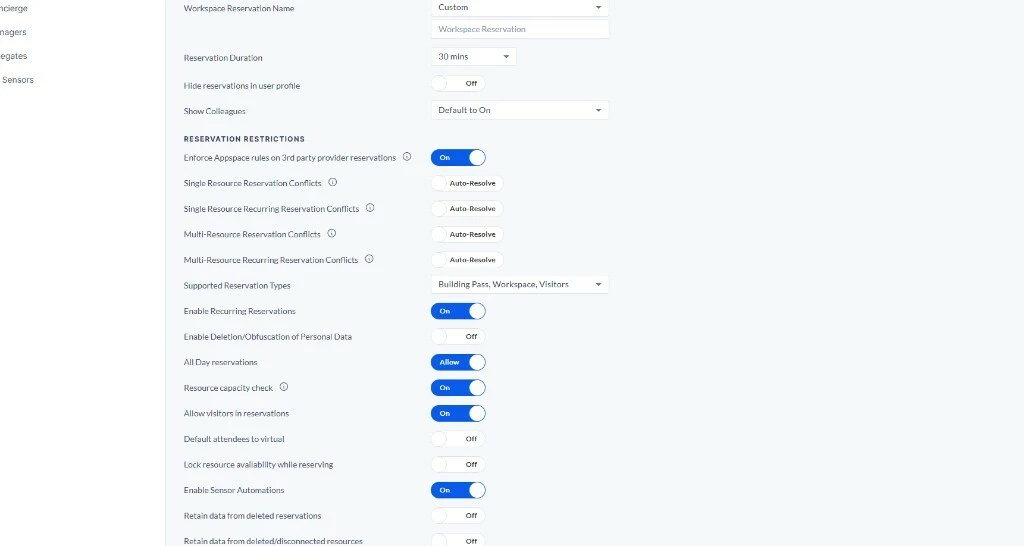
Each (i) icon explains that toggle. Live tooltip for Multi-Resource Recurring Reservation Conflicts:
Determines how conflicts are handled for recurring reservations of multiple resources
Allow — Organizer gets notified and logs into Appspace to manually resolve conflicts for the affected events and resources
Auto-Resolve — Appspace automatically removes the resources from the affected events in the reservation and notifies the organizer
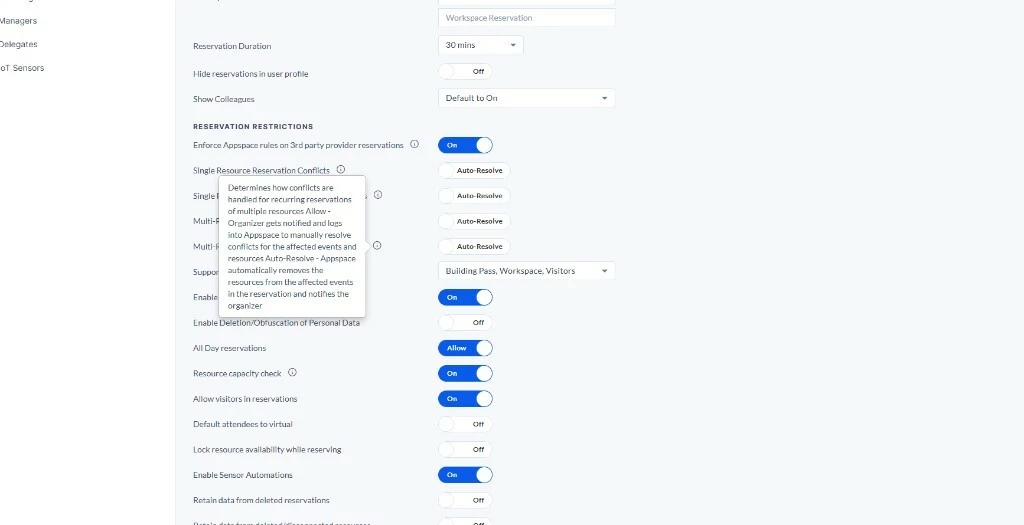
The other three (i) tooltips follow the same Allow / Auto-Resolve pattern:
- Single Resource Reservation Conflicts: Determines how conflicts are handled for reservations of a single resource. Allow — Organizer gets notified and logs into Appspace to manually resolve the conflict. Auto-Resolve — Appspace automatically removes the resource from the reservation and notifies the organizer.
- Single Resource Recurring Reservation Conflicts: Determines how conflicts are handled for recurring reservations of a single resource. Allow — Organizer gets notified and logs into Appspace to manually resolve conflicts for the affected events. Auto-Resolve — Appspace automatically removes the resource from the affected events in the reservation and notifies the organizer.
- Multi-Resource Reservation Conflicts: Determines how conflicts are handled for a reservation of multiple resources. Allow — Organizer gets notified and logs into Appspace to manually resolve the conflicts. Auto-Resolve — Appspace automatically removes the affected resource(s) from the reservation and notifies the organizer.
What each toggle covers
| Toggle | Use it for |
|---|---|
| Single Resource Reservation Conflicts | One room (or one connected resource) on a one-time meeting |
| Single Resource Recurring Reservation Conflicts | One room on a recurring series |
| Multi-Resource Reservation Conflicts | Two or more rooms on a one-time meeting |
| Multi-Resource Recurring Reservation Conflicts | Two or more rooms on a recurring series |
Connected resources count as one logical resource. Appspace evaluates rules on the connected resource as a whole, not on each linked component separately.
Allow — keep and resolve
When a provider meeting syncs and Appspace finds a conflict:
- The reservation stays active (confirmed) in Appspace.
- Conflicted room(s) are marked Conflicted. In a recurring series, only the affected occurrence(s) are conflicted; if every occurrence is conflicted, the series is shown as conflicted.
- For multi-resource meetings, Appspace shows which rooms are conflicted so they can be fixed one at a time.
- The organizer is notified to sign in to Appspace and resolve the conflict by changing the room or the meeting time. Concierge users and delegate bookers with the right permissions can do the same.
- Appspace does not decline the room on the provider in the Allow path.
Notification copy specified for this path:
Your reservation has been synced to Appspace but has a conflict that requires your attention. The reservation remains active while the conflict is open. Please log in to Appspace to resolve the conflict.
While a resource is conflicted, checkpoint and approval workflows for that resource wait. After the organizer (or concierge / delegate) saves a valid room or time, Appspace runs checkpoints and approvals for the updated reservation. Non-conflicted rooms on the same meeting can still follow their own approval or checkpoint configuration.
Auto-Resolve — remove the conflicted room
When a provider meeting syncs and Appspace finds a conflict:
| Booking | What Appspace does |
|---|---|
| Single resource (one-time or a conflicted occurrence) | Removes the room, which cancels the Appspace reservation. Declines the room on the provider. |
| Multi-resource, some rooms conflicted | Removes only the conflicted rooms. The meeting continues with the remaining rooms. |
| Multi-resource, every room conflicted | Cancels the Appspace reservation. |
Organizers receive a resource-removed notice. Specified copy:
- Subject: Resource Removed Due to a Scheduling Conflict
- Body: Appspace was unable to activate your reservation because the requested resource violated scheduling rule. The resource has been automatically removed. Your calendar invitation in [O365/Gcal] has not been modified.
Each toggle change shows a confirmation dialog. Live Auto-Resolve → Allow for single-resource reservations:
Conflict handling for single resource reservations will be enabled. Do you wish to continue?
Buttons: Cancel and CONTINUE.
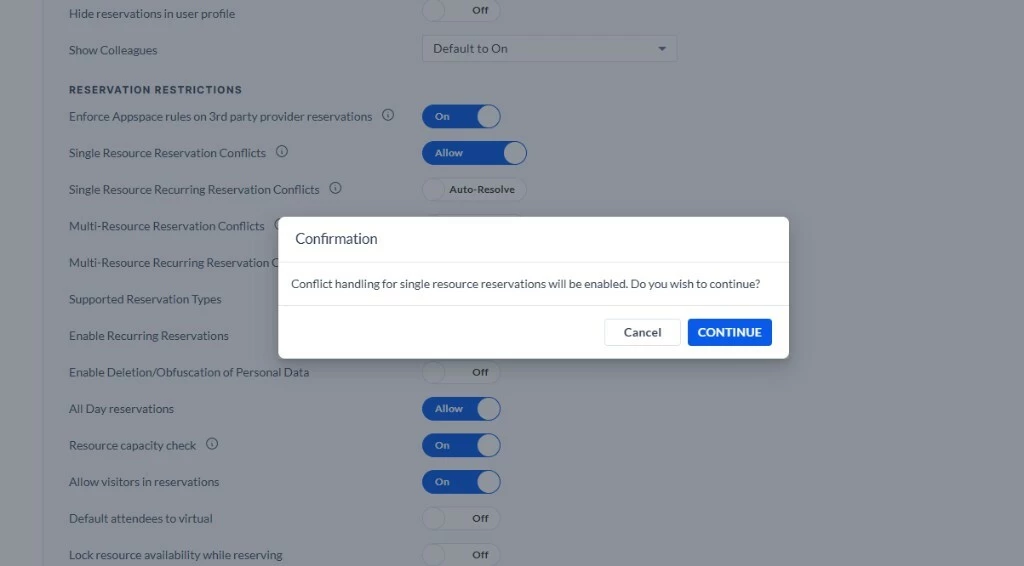
The same pattern is used for the recurring and multi-resource toggles. Product-specified Allow → Auto-Resolve copy: Conflict handling for single resource reservations will be set to Auto-Resolve. Do you wish to continue?
Important: Changing any of these switches affects future reservations. Existing synced meetings are not retroactively reprocessed when you save a new setting.
4. Match settings to how your account was set up
Defaults depend on whether the account is new and whether it previously skipped Appspace calculations for provider events:
| Account | Enforce | Four conflict toggles |
|---|---|---|
| New account | On | All Allow |
| Existing public cloud (not skipping provider calculations) | On | All Auto-Resolve |
| Existing public cloud that skipped Appspace resource calculations for provider events | Off | Four toggles hidden until you turn Enforce On |
| Existing private cloud on Scorpio or newer | Same as public cloud | Same as public cloud |
If your tenant already used Skip Appspace's resource calculations for provider events, expect Enforce to start Off. Turn it On only after you choose Allow vs Auto-Resolve for each booking type.
Accounts created before this capability is generally available are treated as existing public cloud accounts at GA. Confirm which of the rows above matches your production tenant before you change production settings.
5. Review provider calendar behavior
These differences are independent of the four toggles in some cases. Plan for them before you rely on Auto-Resolve or Allow.
Microsoft 365 / Outlook room mailboxes
When Appspace Auto-Resolves and declines the room:
- Default: The resource mailbox declines the invitation and the meeting is removed from the room calendar.
- If your organization uses
Set-MailboxCalendarConfiguration -PreserveDeclinedMeetings $True: the meeting can remain on the resource calendar with a Declined status (closer to Google’s strikethrough).
The organizer’s own calendar invitation is not modified on this room-mailbox path (see the Auto-Resolve notification above).
Bookings created through the Appspace Outlook plugin follow a different update path than an external room mailbox. After conflict Auto-Resolve, Appspace is expected to delete the plugin event from Outlook when the reservation is cancelled, or to update Outlook attendees when a room is removed.
Google Calendar rooms
Google can decline a room on its own when the room is set to auto-accept invitations that do not conflict. That provider decline can happen even when Appspace Allow is selected, because Google is enforcing the room’s own calendar policy.
If Auto-Resolve is selected, Appspace then removes the declined room from the Appspace reservation (or cancels the reservation if it was the last room).
On Google, a declined room typically remains on the resource calendar with a strikethrough, rather than disappearing.
Room as organizer
Important: If the room is the meeting organizer (often when booking on behalf of a room is off), a conflict on that organizer room can cancel or delete the entire provider event — including other rooms that were still valid. Providers reject a partial “organizer declines itself” update, so Appspace must remove the whole event to stay in sync.
Use this configuration with care if employees create meetings where the room is the organizer. Prefer user-as-organizer (on-behalf) patterns if you need partial room removal instead of a full cancel.
6. Validate with a test booking
- Keep Enforce On.
- Set Single Resource Reservation Conflicts to Allow.
- Create a one-time overlapping booking for a test room in Outlook or Google Calendar.
- Wait for sync, then confirm in Appspace that the reservation is still active, the room is Conflicted, and the organizer was notified.
- Resolve the conflict in Appspace (another room or a different time) and confirm the reservation returns to confirmed.
- Repeat the overlap with the same toggle set to Auto-Resolve. Confirm the Appspace reservation is cancelled (single room), the room is declined on the provider as described above, and the resource-removed notice is sent.
Repeat a lighter version of this test for recurring and multi-resource meetings if those are common in your workplace.
Use Case
Scenario: A workplace team uses Outlook to book conference rooms. After an earlier platform change, overlapping Outlook bookings were auto-removed in Appspace and the room declined, which cancelled meetings employees still needed.
Your organization would rather keep the Outlook meeting, flag the conflicted room, and have the organizer pick another space in Appspace.
- Open Reservations → Settings → General → Reservation Restrictions.
- Set Enforce Appspace rules on 3rd party provider reservations to On.
- Set all four conflict toggles to Allow.
- Confirm each dialog, then run the test overlap in step 6.
Organizers keep an active reservation, see which room is conflicted, and fix it without losing the rest of the meeting. If you later decide that double-booked rooms must be freed immediately, switch the matching toggle to Auto-Resolve — only future bookings pick up the new behavior.
Best Practices
- Start with Allow for the booking types your employees create most often (usually single-resource Outlook or Google meetings) if surprise cancellations are the problem you are solving.
- Use Auto-Resolve when a conflicted room must come off the resource calendar immediately (for example, rooms that must never show as busy for an invalid Appspace booking).
- Set recurring and multi-resource toggles explicitly. A series and a one-time meeting are controlled separately.
- Review Google room sharing settings. “Auto-accept invitations that do not conflict” can decline a room even when Appspace is set to Allow.
- Treat room as organizer as a high-impact configuration: a conflict on that room can delete the whole provider event.
- Do not turn Enforce Off unless you intend to skip Appspace rule checks for provider-synced meetings.
- Change production settings during a quiet period and validate with test rooms first. Only future reservations follow the new values.
Troubleshoot
| Symptom | Likely cause | What to try |
|---|---|---|
| You do not see Reservation Restrictions or the four toggles | The capability may not be enabled on the account yet | Contact Appspace Support. |
| Provider bookings never show as conflicted | Enforce is Off, or the account still skips provider resource calculations | Turn Enforce On, then set the matching toggle. Recreate a future test booking. |
| Outlook meeting stays; Appspace cancelled the reservation | Auto-Resolve on a single-resource booking; organizer calendar is not always updated for room-mailbox declines | Expected for room-mailbox Auto-Resolve. Check the resource-removed notice. For Outlook plugin bookings, confirm the event was removed or updated in Outlook. |
| Google room declined even though the toggle is Allow | Google room set to auto-accept only invitations that do not conflict | Adjust the Google room setting, or expect provider-side decline plus Appspace conflict handling. |
| Entire Outlook or Google event disappeared, including other rooms | The conflicted room was the meeting organizer | Review on-behalf / organizer settings. See Room as organizer. |
| Checkpoints or approvals fired while a room was still conflicted | Workflow should wait on conflicted resources | Resolve the conflict, then confirm workflows run on the updated reservation. If it still fires early, collect the reservation ID and contact Support. |
| Organizer got “Resource Removed Due to a Scheduling Conflict” after a missed check-in or zombie (no-show) rule | Check-in “Set to conflict” and zombie rules are separate from these four toggles; interaction with Auto-Resolve is not fully settled | Treat this as unverified. Do not assume the four toggles control check-in or zombie outcomes. |
| A conflicted reservation later looks confirmed without anyone fixing it | Known class of calendar-sync defects; a hotfix has been in progress for some tenants | Capture timestamps, reservation ID, and provider. Contact Support. Do not treat this as intended Reservation Restrictions behavior. |