
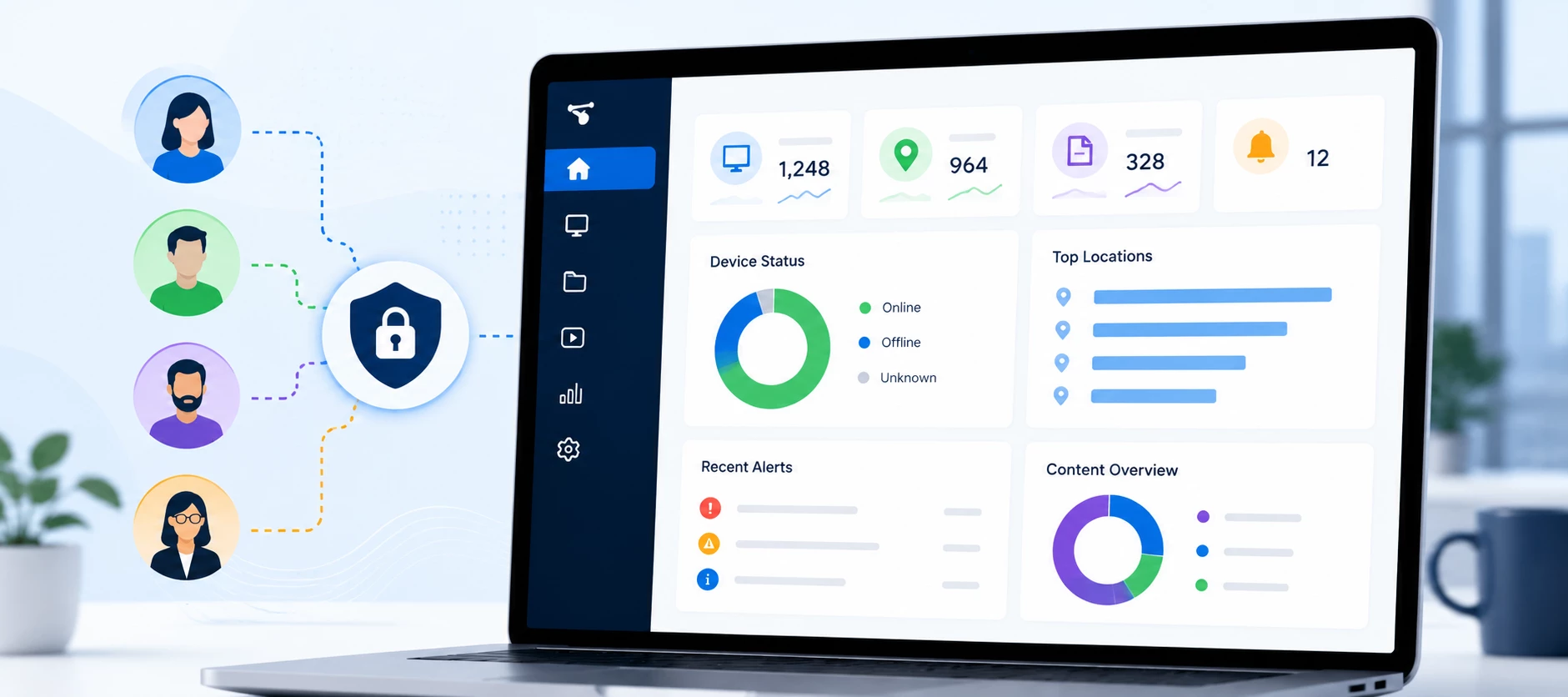




The Appspace Dashboard is designed to display information based on a user's assigned roles and location permissions. This helps ensure users only see the data and actions they are authorized to access while maintaining security across your Appspace environment.
As roles or location access change, the dashboard automatically updates to reflect those permissions after the user's session is refreshed.
How Dashboard Access Works
Dashboard widgets, navigation options, quick actions, and reporting are all controlled by your assigned permissions.
- User Roles — Determine which features and dashboard information you can access.
- Location Access — Determines which devices, content, and data are available based on the locations you have permission to manage.
- Session Refresh — Permission changes take effect after refreshing your session by signing out and back in.
What Changes with Different Roles?
| User Role | Dashboard Experience |
|---|---|
| Author | Access to content creation tools, but infrastructure and device-related dashboard information may not be displayed. |
| Publisher | Can publish content, while administrative dashboard information remains limited based on assigned permissions. |
| Local Administrator | Can view dashboard information for locations they administer, including device-related information for those locations. |
| Account Owner / Higher-Level Administrators | Have access to dashboard information across locations and features according to their administrative scope. |
How Location Permissions Affect Dashboard Data
Even users with administrative roles may see different dashboard information depending on which locations they have access to.
Scenario:
- A Local Administrator assigned to a specific location will only see information for that location.
- If that user is granted access to a higher-level or parent location, additional dashboard information becomes available because more resources fall within their administrative scope.
When Will Permission Changes Appear?
If an administrator updates your role or location permissions, you may need to refresh your session before those changes appear.
- Sign out of Appspace.
- Sign back in.
- The dashboard reloads using your updated permissions.
In many cases, simply refreshing the browser is sufficient, but signing out and back in ensures all permission changes are applied.
Common Questions
Why can't I see device information on my dashboard?
Your assigned role or location permissions may not include access to device management information.
Why does another administrator see more information than I do?
Different administrative roles and location assignments provide access to different dashboard widgets and data.
Is missing dashboard information a product issue?
Not usually. The dashboard intentionally displays only the information your assigned permissions allow you to access.
I was recently granted additional permissions but nothing changed.
Sign out and back in to ensure your session reloads with the updated permissions.
Quick Reference
| If... | Then... |
|---|---|
| You change user roles | Dashboard features update based on the new permissions. |
| You gain access to additional locations | Dashboard data expands to include resources within those locations. |
| You no longer have permission to a feature | Related widgets and information are hidden automatically. |
| Permissions were recently updated | Refresh your session by signing out and back in. |