



Recover Deleted Intranet Content: A Guide to the Trash Bin
Account Owners and Publishers who publish intranet content can use this guide to remove an intranet page, story, post, poll, praise, or event without losing it immediately. Trash keeps the item for a recovery window, hides it from readers, and lets you put it back the way it was.
After finishing this guide, you can move content to Trash, find it again, restore it during the recovery window, and (as an Account Owner) permanently delete it or export the deletion history.
Key Benefits
- A mistake is recoverable — A page, story, post, poll, praise, or event can come back with its content, permissions, and history.
- Readers stop seeing it immediately — Trashed items leave feeds, search, campaigns, and calendars while you decide.
- A visible deadline — Each item shows how many days remain before it is purged, fixed from the moment it was trashed.
- Restore and purge are different rights — A Publisher or community owner can put back content in spaces they can already edit. Permanent delete stays with an Account Owner.
- A record for compliance — An Account Owner can query and export who trashed, restored, permanently deleted, or purged an item.
What This Guide Covers
- Moving pages, stories, posts, polls, praise, and events to Trash
- Finding an item in the Trash view
- Restoring it, including when its space is gone
- Permanent delete, including several items at once
- What happens when a space is deleted
- Event attendee notices
- Asking who deleted something, and exporting that history
Prerequisites
- Appspace platform 2604.0.0 or later, with Trash left on. If Trash is later turned off, items already in Trash can still be restored.
- A page, story, post, poll, praise, or event in a space you can edit.
- Access you already have. Trash does not add a role of its own:
- Account Owner — sees trashed content for the account, can restore it, and can permanently delete it. An Account Owner can also read and export deletion history.
- Publisher, or a community owner who can already edit the space — sees and can restore trashed content from those spaces. They cannot permanently delete, and they cannot see Trash for spaces they cannot edit.
- A user with neither of those gets an empty Trash and no restore action.
Steps
1. Move the item to Trash
- Open the console menu and select Posts.
- Select the item or items you want to move to the Trash.
- If one item is chosen, open the ellipsis on the right and select Move to Trash.
- If multiple items are chosen, select the Trash icon in the banner that appears.
- Confirm. The confirmation states a 14-day recovery window.
The item leaves the places readers normally see it: posts lists, the published page or story, topic collections, feeds, search, and campaigns. An event also leaves calendars and event rails. A direct link does not keep showing it to someone who cannot restore it. That person gets not-found.
A draft that you trash is still a draft when you restore it. Translations of a page or story go with it. Version history, permissions, tags, and narration audio stay with a page. A post, poll, or praise also keeps reactions, comments, bookmarks, pins, approvals, and acknowledgement state, so restore brings them back.
Content that is scheduled for a future date does not publish while it sits in Trash.
Archive is a separate, existing action. Trash is the path that keeps the item recoverable with its engagement intact.
2. Open the Trash view
- Open the console menu and select Posts.
- Select Trash. Archived is in the same list, above Trash.
Each row shows:
- Title
- Type
- Original location (the space it was published to)
- Deleted date
- Deleted by
- Days until purge
Search by part of the title. Filter by type, deleted by, deleted date, and space. You can combine those filters. Status and Connectors filters are not on this list. An empty bin shows an empty state.
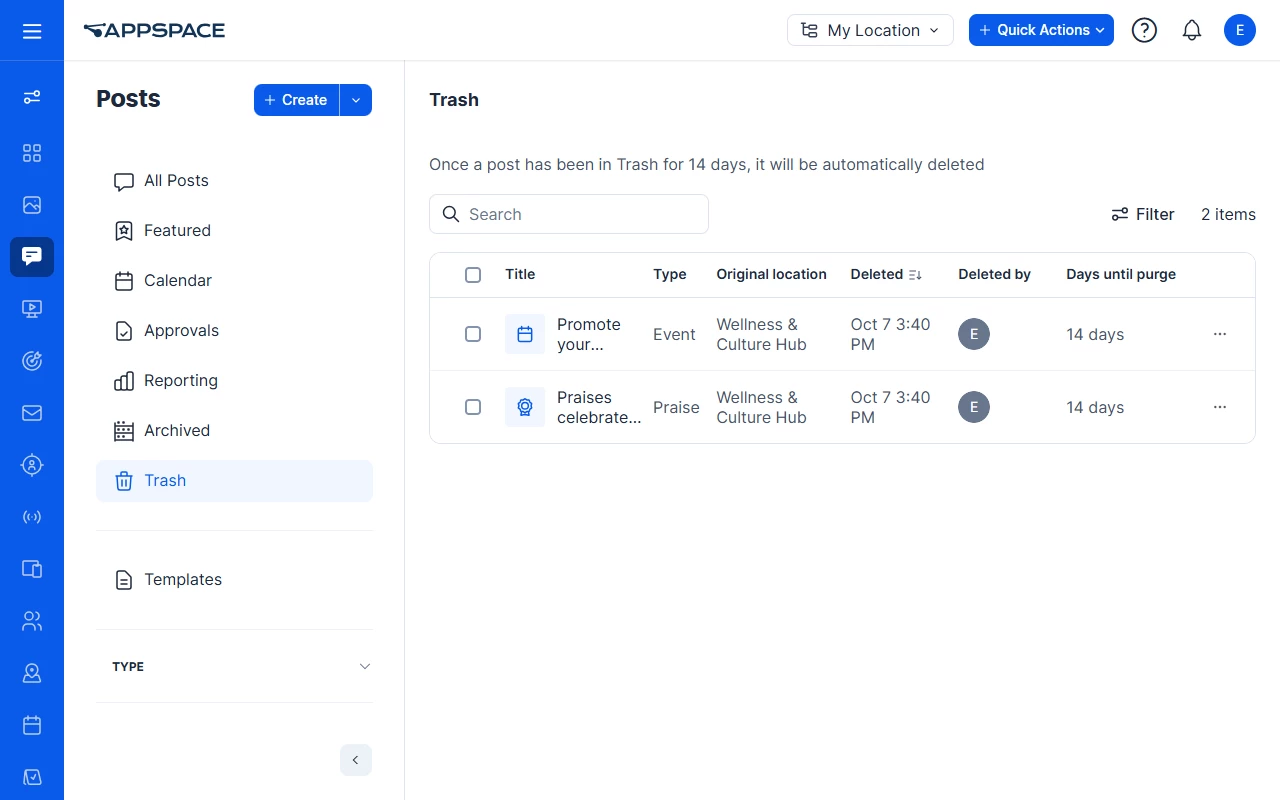
Above the list, Trash states that a post is automatically deleted after 14 days. Days until purge on a newly trashed item reads 14 days.
Days until purge counts down from the item’s own purge date. That date is set when the item is trashed. A later change to retention policy does not move it.
3. Restore the item
Option #1
- Open the item from Trash. It opens read-only.
- Read the banner. It names the type: “This post is in the Trash. It will be permanently deleted in 14 days.” A page or story uses “page” or “story” in that sentence. The same countdown is in Days until purge.
- Choose Restore. Permanently delete is on the same banner for an Account Owner.
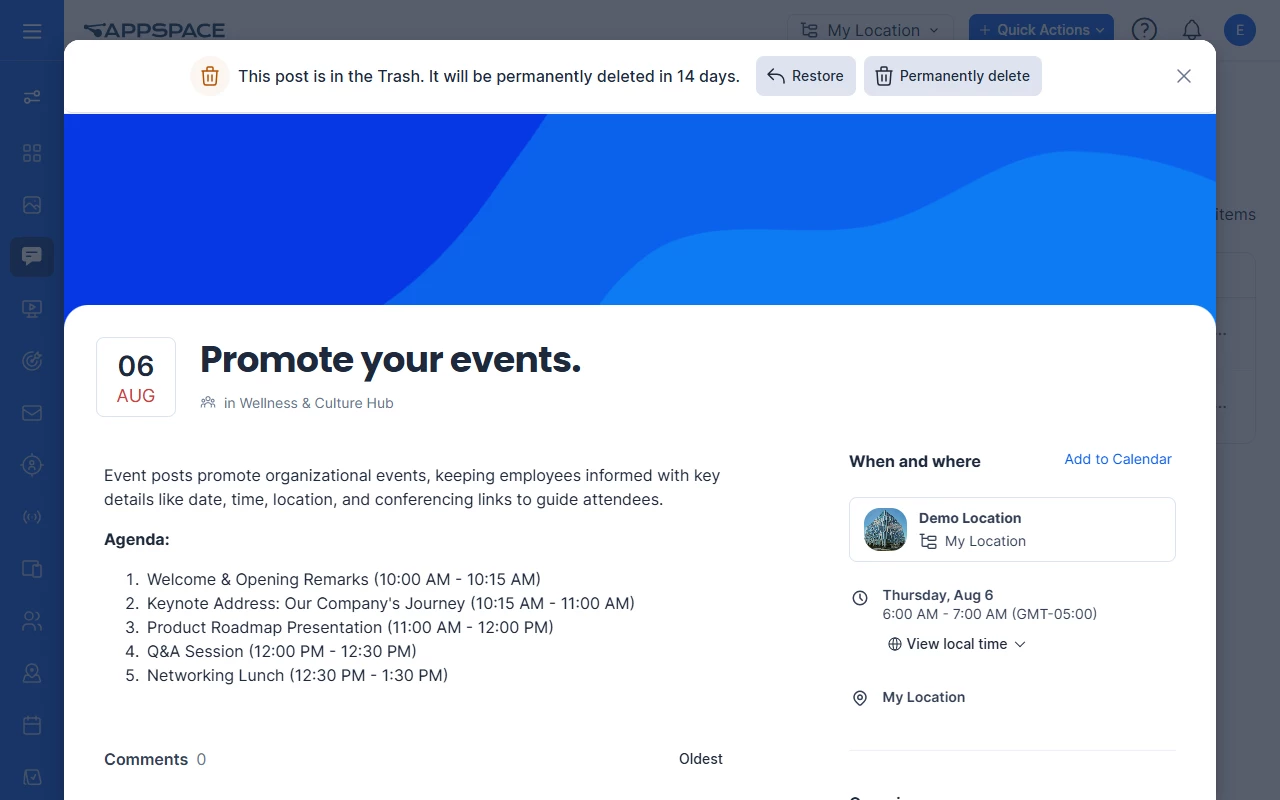
You return to the live item. It comes back in the status it had before, in the space it came from.
Option #2
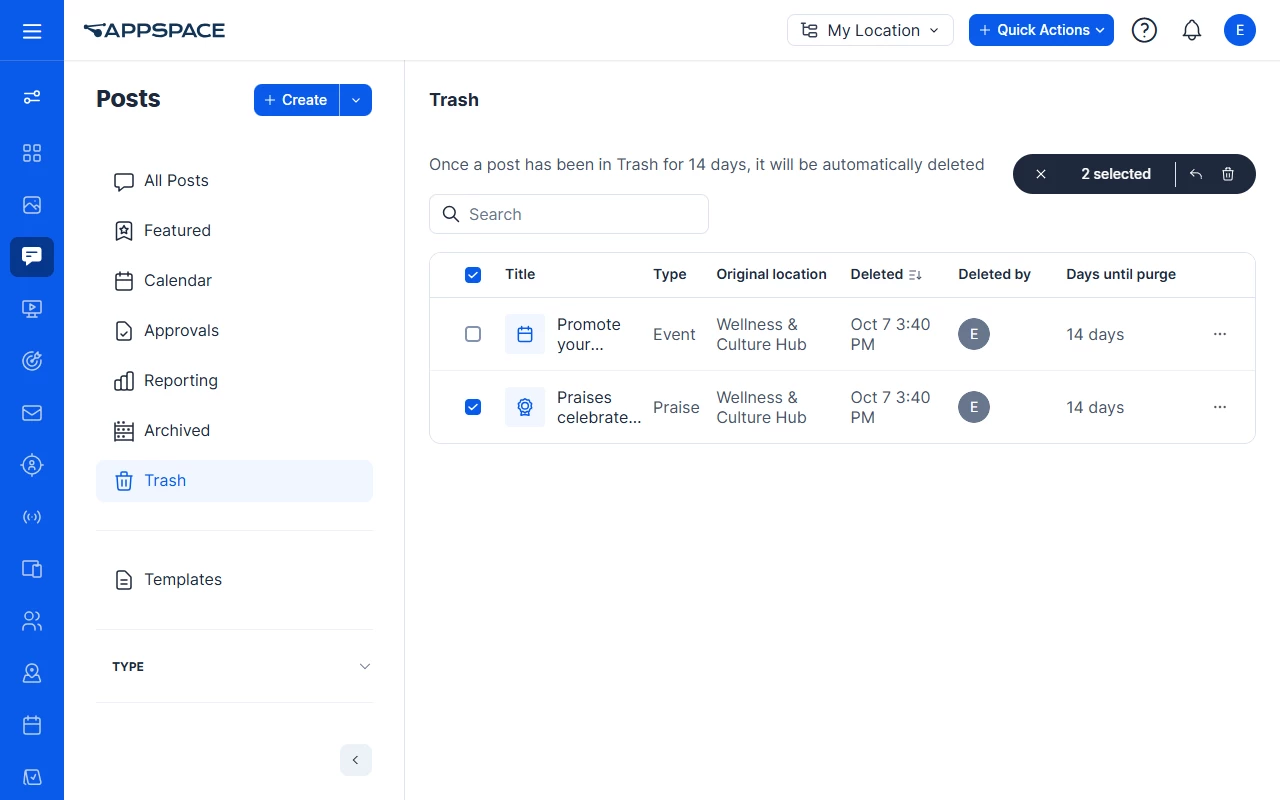
- Select the item(s) in the Trash.
- Select the Restore icon in the banner that appears. Permanently delete is on the same banner for an Account Owner.
When the space is gone. If you restore an item whose every space has been deleted, it comes back as a draft with no space. Open it in the editor and publish it to a space from there. Restore does not ask you for a new space.
Someone without restore rights who opens the link gets not-found. They do not see the banner.
4. Permanently delete
Permanent delete removes the item now, instead of waiting for the recovery window. It is an Account Owner action. A Publisher or community owner does not see it.
- As an Account Owner, open the item and choose Permanently delete on the banner, or select the item in the Trash list.
- To delete or restore several items, select them in Trash and click the Permanently delete icon on the banner that appears. The confirmation shows how many items you selected. Each item succeeds or fails on its own. One failure does not roll back the others.
Items whose purge date has passed are removed by an automatic sweep. You do not have to delete those yourself. Nobody is notified when an event is purged. Attendees were already told when it was trashed.
5. Know what a deleted space does
Deleting a space still deletes the space. The space does not appear in Trash, and you cannot restore the space itself.
- Content that was published only to that space goes to Trash. Its original location still shows. Restoring it returns a draft with no space, as in step 3.
- Content that was also published to another space stays published. It loses the deleted space and remains everywhere else.
6. Notify event attendees
When an event is trashed, attendees who have not declined are notified. The same people are notified if you restore the event. People who declined are not notified. Purging the event does not send another notice.
Trashing several events at once does not send a storm of notices to someone who was on all of them.
7. Review or export deletion history
An Account Owner can answer who trashed, restored, permanently deleted, or purged an item, and can export that set as a file. In Trash, the left panel filters by type, deletion date, and who deleted the item.
Use Case
Scenario: A Publisher removes the wrong story the morning it was announced, and an Account Owner later proves what happened.
The story is live in a department space. The Publisher moves it to Trash and confirms the 14-day window. It disappears from the feed and from search. They open Trash in the Posts module, find the row, check Days until purge and Original location, and choose Restore. The story returns to that space with its translations, versions, and permissions. Two weeks later an Account Owner exports deletion history for that story so a compliance question can show the trash time, the restore time, and who did each.
Best Practices
- Read Days until purge before you assume you still have time. The date is fixed when the item is trashed.
- Use Restore when the item should come back. Use Permanently delete only when an Account Owner means to remove it before the window ends.
- Publish a restored draft yourself when the original space no longer exists. Restore will not ask you for a replacement space.
- Understand Archive vs. Trash. Archive is the existing action. Trash is the one that keeps reactions, comments, and the rest of the post so restore is complete.
- Expect event attendees who have not declined to hear about both the removal and the return.
Troubleshoot
| Symptom | Likely cause | What to try |
|---|---|---|
| Delete still removes the item with no Trash | The console is older than 2604.0.0 | Confirm the release. |
| Trash is empty and there is no Restore | You cannot edit the space, and you are not an Account Owner | An Account Owner sees the account’s Trash. A Publisher or community owner sees spaces they can edit. |
| A bookmarked link says not found | You do not have restore rights | Ask an Account Owner, or a Publisher or community owner for that space, to restore it. The link stays hidden from everyone else. |
| Restore returns a draft with no space | Every space the item was published to has been deleted | Open the editor and publish it to a space. |
| Permanently delete is missing | You are a Publisher or community owner | Ask an Account Owner. Restore is available; purge is not. |
| A scheduled post went live from Trash | Trashed scheduled content does not publish on its original date | Confirm the item is still in Trash. |
| The space you deleted is not in Trash | Spaces are still deleted outright | Look in Trash for content that was published only to that space. Content that was also published elsewhere is still live. |
| You expected the author of a page or story to be emailed | Notices go to event attendees | Attendees who have not declined are notified when an event is trashed or restored. |
| Days until purge does not match a retention setting you changed later | The purge date is fixed when the item is trashed | Use the countdown on that row. |