
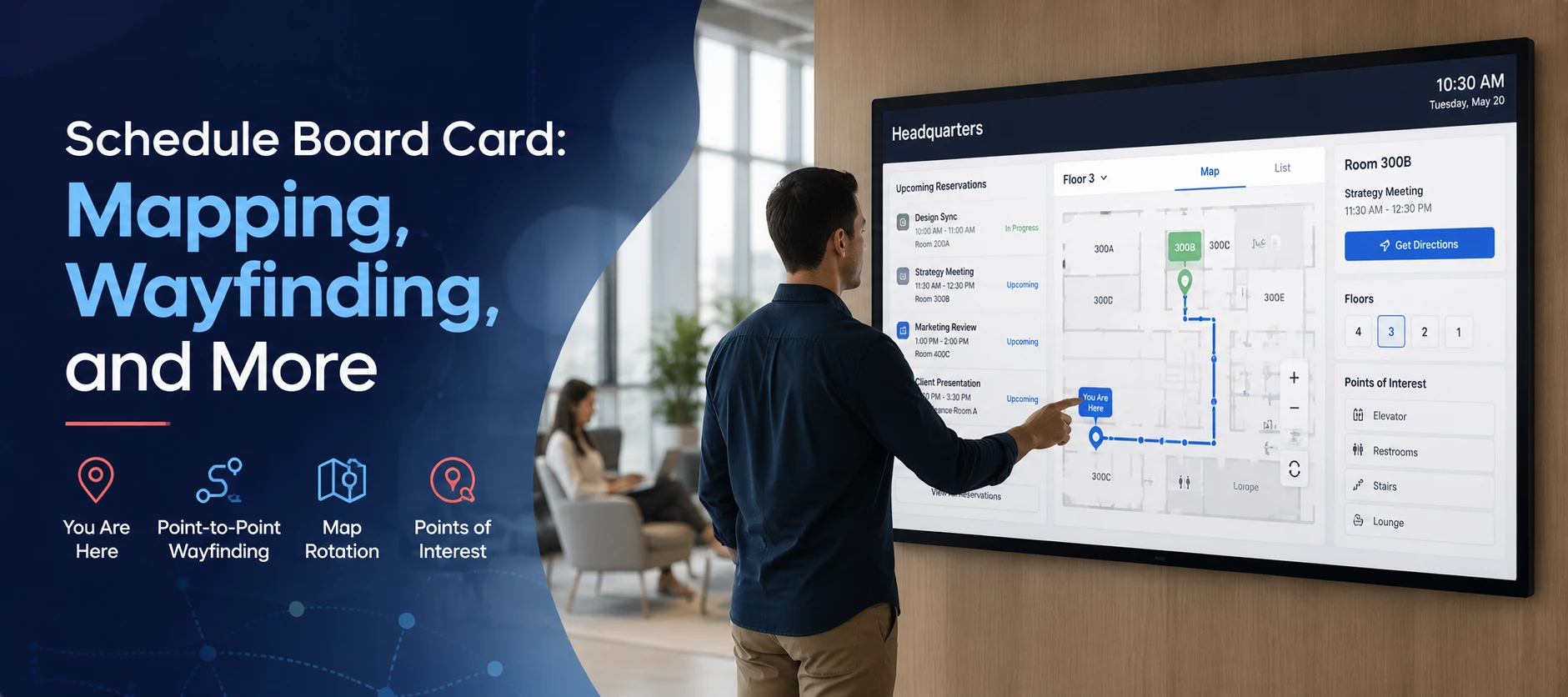




The updated Schedule Board Card introduces new ways to connect resources, organize maps, and help employees find their way around the workplace.
In this walkthrough, you’ll see how to configure the updated card, filter the resources displayed, enable new mapping options, and use features such as point-to-point wayfinding and map rotation.
Connect and Filter Appspace Resources
When creating a Schedule Board Card from the Workplace section of the Library, you can connect the Appspace resources you want to display.
The updated experience gives you more control over which resources appear on the card. You can filter resources by:
- Location — Select a building, floor, or multiple floors.
- Resource type — Display rooms, spaces, or both.
- Room subtype — Narrow the selection to specific types of rooms.
- Availability — Hide non-bookable resources.
- Management type — Hide IoT-managed resources when needed.
This makes it easier to work with large resource lists and select only the spaces that should appear on a particular Schedule Board.
Explore the New Mapping Options
The biggest changes are available under Mapping Options. These settings provide more flexibility in how employees interact with workplace maps.
- Map and list view — Allow users to switch between the workplace map and a resource list.
- Point-to-point wayfinding — Provide directions from a starting point to a selected resource.
- You Are Here — Display the Schedule Board’s current position as a starting point for navigation.
- Map rotation — Adjust the orientation of the map to better match the physical placement of the display.
- Points of Interest — Display locations such as elevators that can assist with navigation and wayfinding.
Use Point-to-Point Wayfinding
With wayfinding enabled, employees can select a room or space and choose Get Directions to see a path from their starting location to the destination.
Wayfinding can also support:
- Navigation between workplace resources
- Directions using Points of Interest such as elevators
- Navigation between floors
- Different map styles, including supported 3D maps
Important: Point-to-point directions require pathing to be configured for your workplace maps. Contact your Appspace representative if you need assistance setting up pathing.
Adjust the Map Orientation
Map rotation can help align the digital map with the physical orientation of a Schedule Board display.
When map rotation is enabled, the orientation can be controlled using a device property. This allows you to specify the rotation appropriate for an individual display.
If you manage many devices, the property can also be added as a global property and then adjusted for individual devices as needed.
Tip: After rotating a map, review the card on the actual display. Depending on the dimensions and layout of your map, you may need to adjust the map image to ensure everything displays correctly.
See It in Action
Watch the video above for a complete walkthrough of:
- Creating and configuring the Schedule Board Card
- Filtering and connecting workplace resources
- Working with multiple floors
- Configuring Mapping Options
- Using the You Are Here location
- Setting up point-to-point wayfinding
- Working with 2D and 3D maps
- Configuring map rotation using device properties
These enhancements give you greater flexibility in how Schedule Boards display workplace resources while making it easier for employees to find and navigate to the spaces they need.