




When you need help from Appspace Support, providing the right information when you first submit your case can help the investigation begin more quickly.
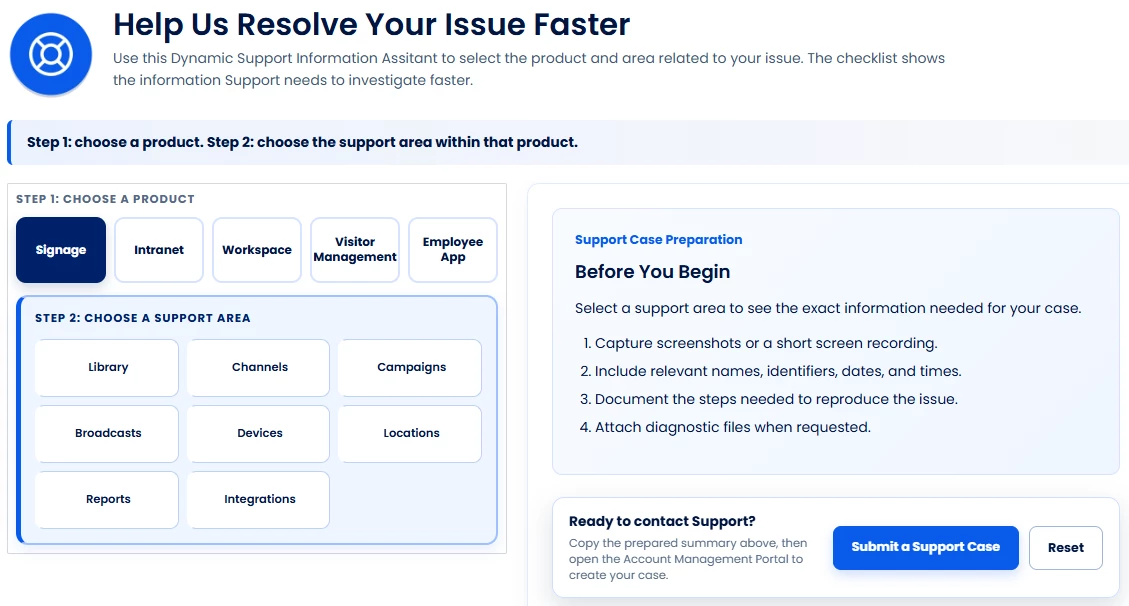
The Help Us Resolve Your Issue Faster section on the Appspace Support page makes that easier. Its interactive Dynamic Support Information Assistance guides you through the information Support may need based on the Appspace product and area related to your issue.
Visit Help Us Resolve Your Issue Faster
Before creating your next support ticket, visit the Support page in Appspace Community and go to the Help Us Resolve Your Issue Faster section.
The interactive guide helps you determine what information to gather before submitting your case, so you can provide Support with more useful context from the start.
Why Use the Dynamic Support Information Guide?
Many support cases require a common set of details before troubleshooting can begin. The specific information varies depending on the Appspace product and support area involved, but it may include:
- A description of the issue
- The affected user, device, resource, location, or content
- Relevant names or identifiers
- Dates and times associated with the issue
- Screenshots or screen recordings
- Steps taken before the issue occurred
- Diagnostic information, such as HAR files or device logs, when applicable
When these details are not included with the original ticket, Support may need to contact you for additional information before the initial investigation can move forward.
The Help Us Resolve Your Issue Faster section helps you gather these details before you submit your case, reducing avoidable back-and-forth.
How the Interactive Guide Works
The guide uses a simple step-by-step process to identify the information that may be most useful to Support.
- Select the product area related to your issue, such as Signage, Intranet, Workspace, Visitor Management, or Employee App.
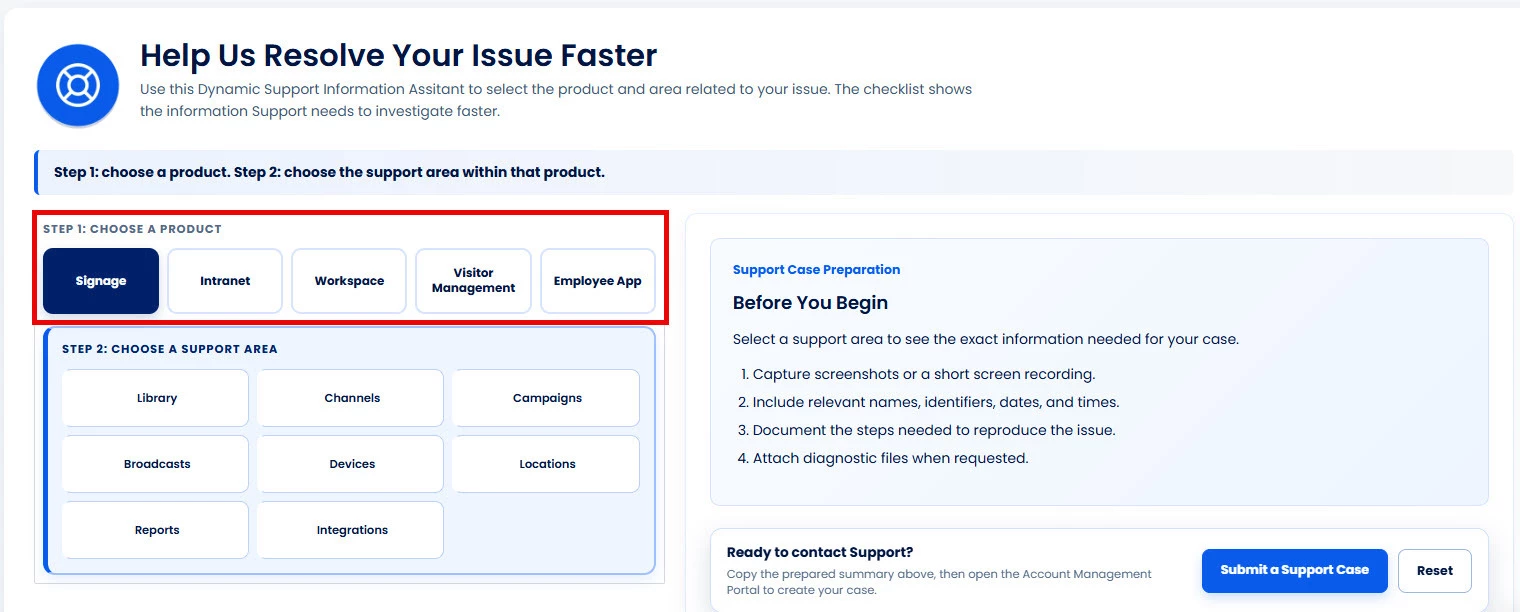
- Select the specific support area or feature involved.
- Review the Information Needed for your selection.
- Enter as many of the requested details as possible into the provided fields.
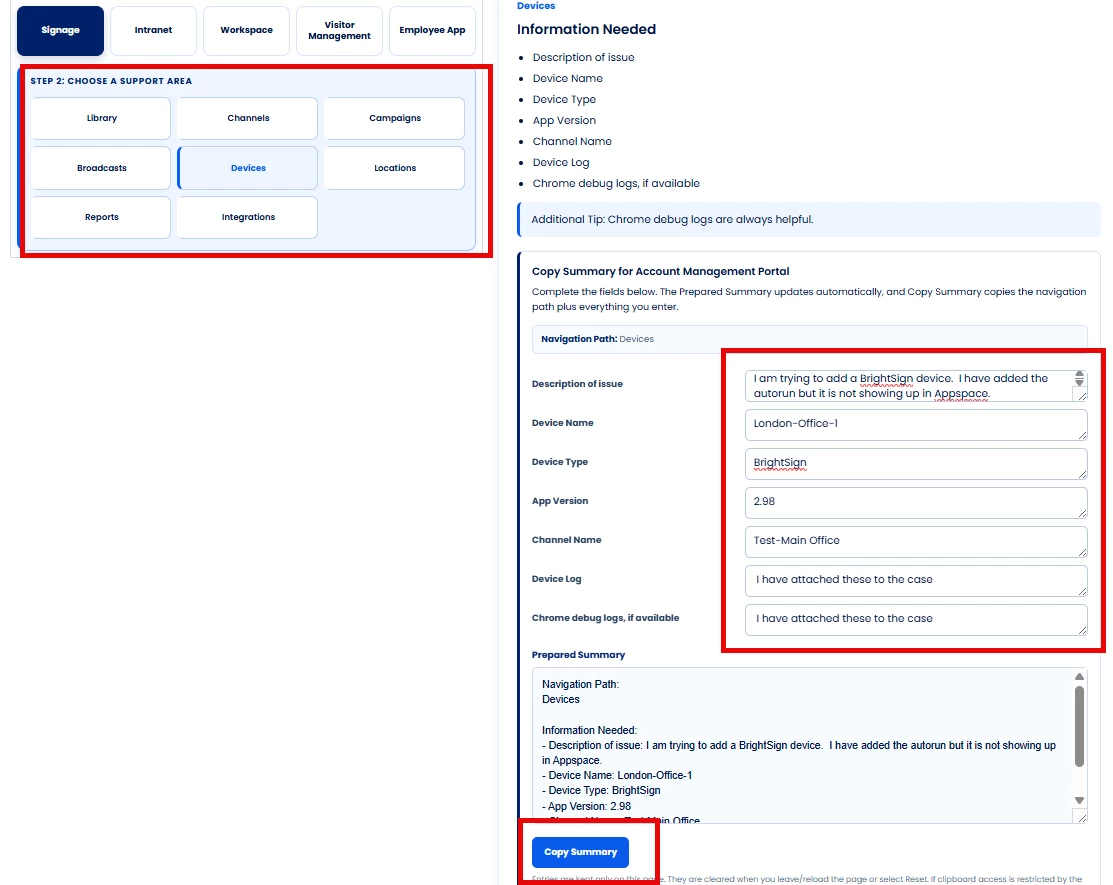
- Review the automatically generated Prepared Summary.
- Select Copy Summary and paste the information into your support ticket in the Account Management Portal.
As you make your selections, the information displayed by the guide changes to match the product and support area you selected.
Diagnostic files such as screenshots, videos, HAR files, or device logs should still be attached separately to the support case when applicable.
Use the Guide Before Submitting Your Case
For the best experience, visit Help Us Resolve Your Issue Faster before submitting your case through the Account Management Portal.
Complete as many of the requested fields as possible, copy the prepared summary, and include it in your support ticket along with any relevant attachments.
Providing this information when the case is first submitted gives Support a stronger starting point for the initial investigation.
Reduce Delays Caused by Missing Information
The goal of Help Us Resolve Your Issue Faster is simple: reduce the time spent gathering the basic information needed to begin investigating your case.
Providing the initial details up front can help Support:
- Understand the issue more quickly
- Identify the affected Appspace product, feature, and workflow
- Begin reviewing the case with more complete context
- Reduce avoidable requests for basic information
- Spend more time investigating the issue instead of gathering initial details
Some issues will still require follow-up questions as troubleshooting progresses, but providing the requested information at the beginning can help Support get started with better context.
Help Us Help You Faster
Before opening your next support ticket:
- Visit the Appspace Support page in Community.
- Go to Help Us Resolve Your Issue Faster.
- Select your Appspace product.
- Choose the affected support area.
- Complete as much of the requested information as possible.
- Copy the prepared summary.
- Include the summary in your support ticket and attach any relevant diagnostic files.
A few extra minutes spent gathering the relevant information before submitting your case can help reduce unnecessary back-and-forth and give Support the details needed to begin the initial investigation sooner.