



Optimize Your Asset Management: Best Practices for Content Libraries
Introduction
The Appspace Library is the central workspace for cards, media, templates, and other content assets. A well-designed Library structure helps content teams find approved assets, maintain access boundaries, and remove outdated content.
Key Benefits
This article provides the following benefits:
- Faster content creation: Make approved assets and templates easy to find.
- Clear ownership: Use group libraries, folders, and sharing permissions to define who can manage content.
- Better content hygiene: Use content expiry and review routines to reduce obsolete or duplicate assets.
What This Guide Covers
This guide covers the following topics:
- Choosing between group and Common Libraries
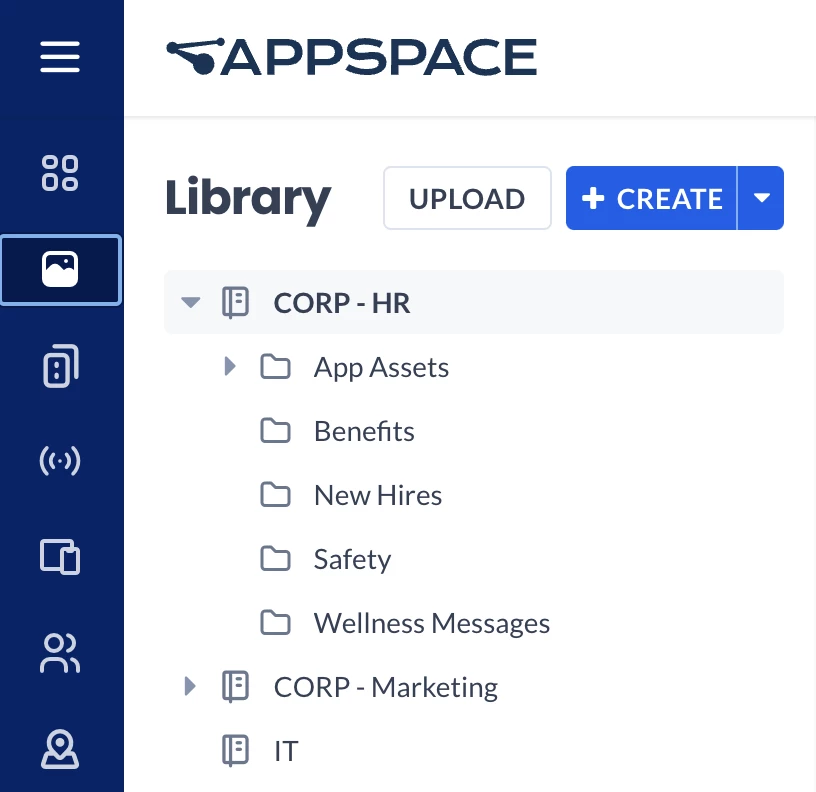
- Creating folder structures
- Sharing content
- Managing templates and protected fields
- Using content expiry
Prerequisites
Before you begin, confirm the following requirements:
- Platform access: Content creators and administrators need a Platform license.
- Library permissions: Users need the assigned Publisher, Author, or Library access required for the content they manage.
- Governance plan: Define Library owners, folder conventions, sharing rules, and retention expectations.
Choose the Right Library
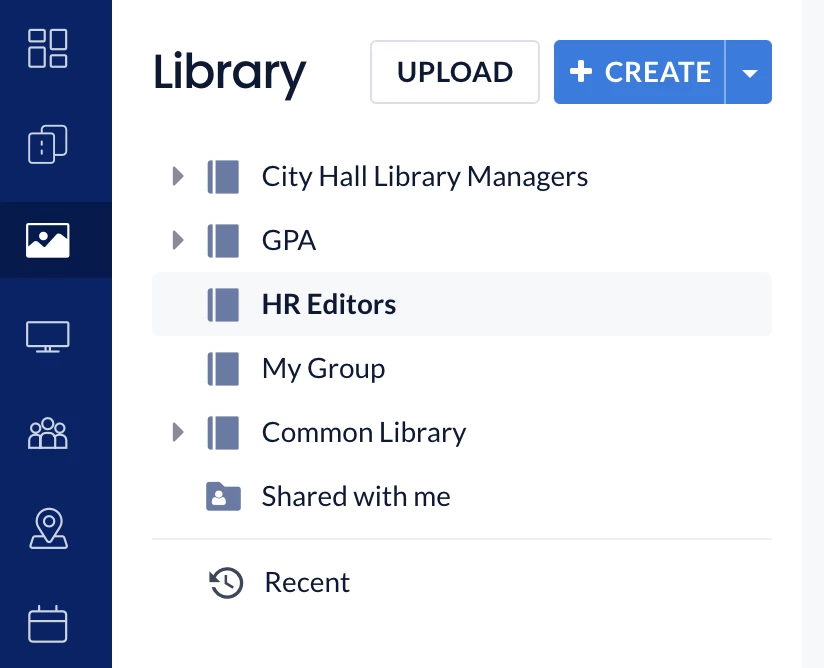
Group Libraries
Use a private User Group Library when a department, region, or team requires an isolated content workspace. Group members with the appropriate content role can manage its assets, and Account Owners may retain administrative access.
Common Library
Use the Common Library for approved content that should be broadly discoverable or shared. Configure one of the available access modes:
- Admin Only: Only administrators can access the Common Library.
- Everyone — Read & Write: All authorized users can view, use, and edit content.
- Everyone — Read-Only: Users can view and use content without changing the original.
- Custom Access: Assign Read-Only or Read & Write access to selected users or User Groups.
Build a Folder Structure
Use Predictable Categories
- Campaign or initiative: Benefits enrollment, safety campaign, product launch.
- Time period: Year, quarter, month, or event date.
- Asset type: Images, video, templates, logos, and backgrounds.
- Audience or location: Corporate, region, site, or employee segment.
- Lifecycle status: Draft, approved, scheduled, archive, or reusable.
| Naming: Use descriptive folder and content names that make sense to someone outside the original project team. |
Share and Protect Content
Folder Sharing
- Viewer or Read-Only: Users can reference or copy approved content without changing the source.
- Editor or Read & Write: Users can update content and collaborate in the shared folder.
| Least privilege: Give Editor access only to users responsible for maintaining the source assets. |
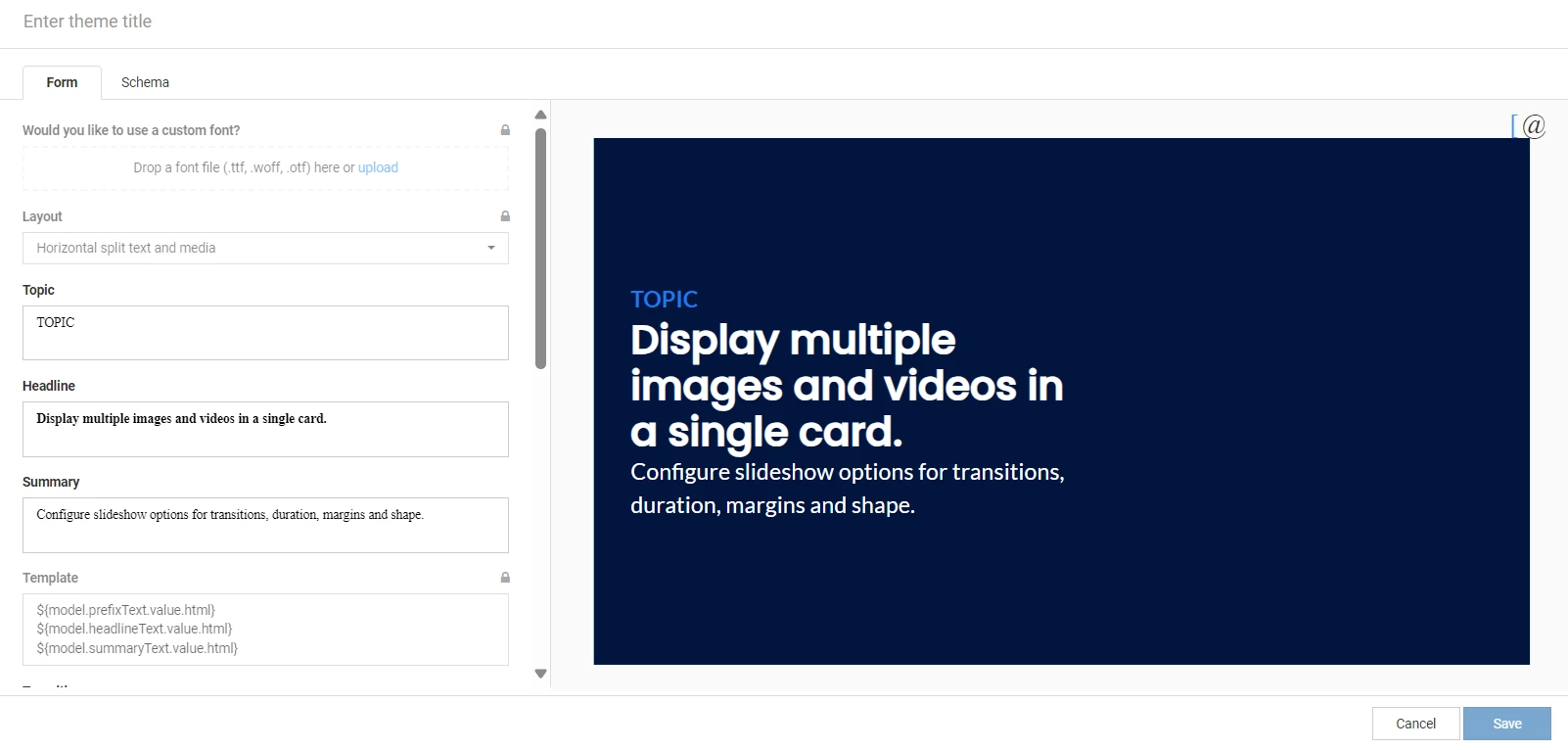
Templates, Themes, and Protected Fields
Use approved card templates and themes to standardize visual design. Where protected fields are supported, lock brand-critical elements or instructions that should not be changed by local creators.
Use Content Expiry
Configure Automatic Removal
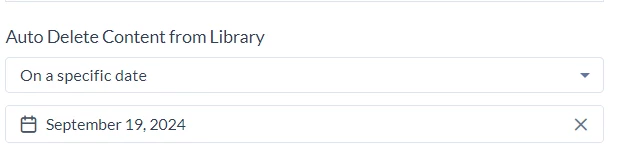
Content expiry or automatic content deletion can remove time-sensitive content from a Library after a specified date or according to User Group Library settings.
1. Open the content or group-Library settings.
2. Choose the content-expiry or automatic-deletion option.
3. Select a specific date, unallocated-content rule, or other available scope.
4. Confirm that the asset is no longer needed by an active channel.
5. Save the setting.
| Caution: Deleting content from the Library can affect channels and experiences that reference it. Review allocations before deletion. |
Maintain the Library
Monthly Review
1. Review recently added and frequently used content.
2. Remove or archive duplicates.
3. Confirm that owners, dates, tags, and folders are accurate.
4. Check expired campaigns and seasonal content.
5. Review shared-folder permissions.
6. Update approved templates and brand assets.