

Keep Your Platform Clean and Compliant: A Guide to Centralized File Management
Appspace provides a centralized Document Libraries view in the admin console, giving administrators a single interface to search, filter, and manage files across the platform. Rather than navigating into individual Spaces to track down content, you can see every file uploaded to a Document Library in one place and take action on it directly. For step-by-step configuration instructions, refer to the technical documentation: Centralized File Management.
Note: This feature only surfaces files from Spaces that have Document Libraries enabled. Files shared as attachments in Posts, Stories, or Pages are not included.
Key Benefits
- Complete Visibility — See every file from Document Libraries across your platform in one unified view.
- Faster Compliance and Audit Response — Search and filter by file type, owner, date range, and tags to locate specific files in seconds.
- Efficient Storage Management — Find outdated or unnecessary files and remove them in bulk.
Prerequisites
- Account Owner, Location Admin, or Publisher role: Account Owners and Administrators have full access to the centralized Document Libraries view.
- Appspace Platform user license: Required for admin console access.
- Document Libraries enabled: Only files from Spaces with Document Libraries enabled will appear.
Attachments vs. Document Libraries
Within each Space, files are organized under two separate tabs: Attachments and Document Libraries. Only the Document Libraries tab feeds into the centralized admin console view.
- Attachments tab: Files uploaded directly into Posts, Stories, or Pages. These are tied to specific content and are not visible in the centralized view.
- Document Libraries tab: A dedicated file library within a Space. Files here appear in the centralized admin console view.
When a Space has Document Libraries enabled, its library will appear under Spaces > Document Libraries in the admin console, provided you have the appropriate permissions. This admin console view is a collective view of all Document Libraries across every Space. Important: Once enabled, a Document Library cannot be deleted independently. Deleting the Space itself will remove the library and all of its files.
A Note on Publisher Permissions
Publishers can enable Document Libraries and configure file management permissions. However, Publishers cannot see uploaded files unless they are the Owner or Moderator of that Space, or the permission is set to Members. Furthermore, Publishers cannot see Document Libraries in the admin console unless they have an Account Owner or Location Admin role, or are the Owner or Moderator of the Space.
Overview of the Centralized View
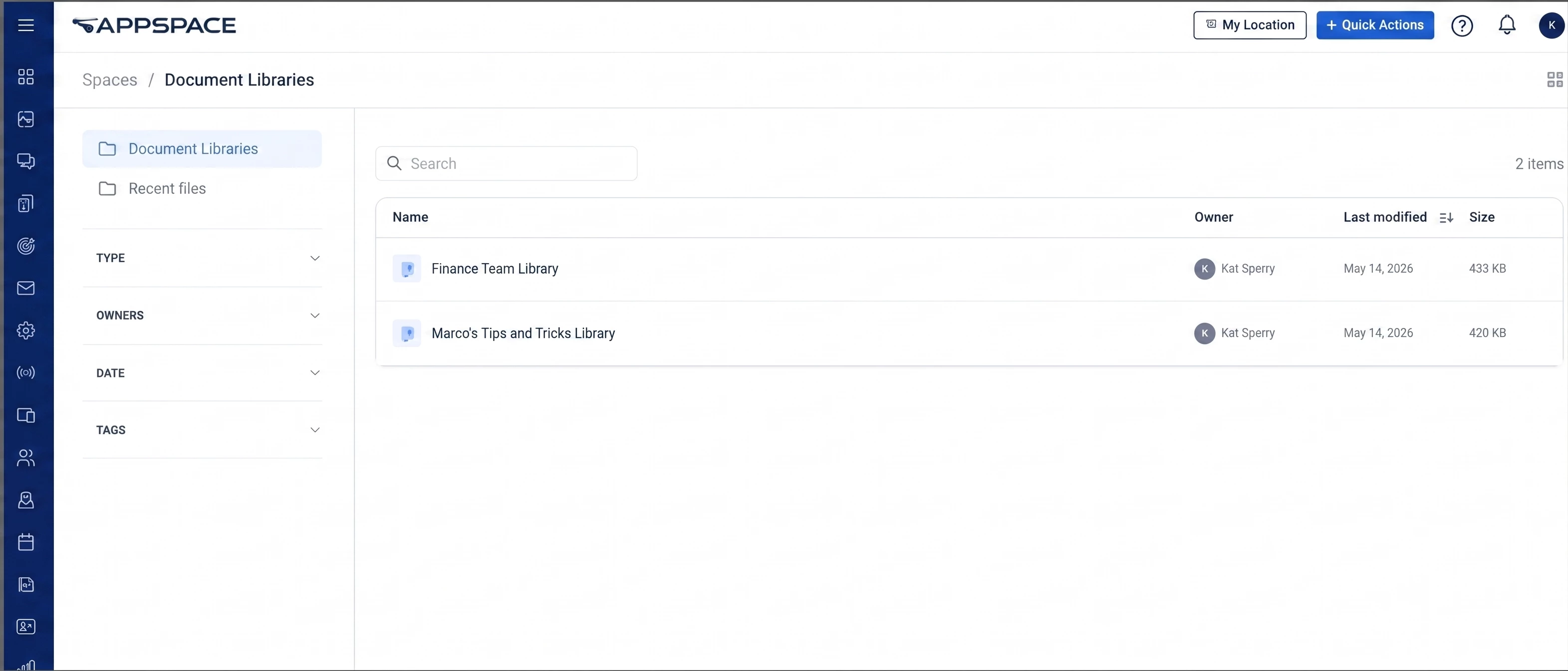
When you open Spaces > Document Libraries in the admin console, the default view displays the Document Libraries themselves, listed with their name, owner, last modified date, and size. To see individual files, click into Recent files in the left sidebar or begin applying filters.
- Type filter: Narrow results by content type, such as Document, Image, PDF, Presentation, Spreadsheet, Video, or Archive. You can select one type at a time.
- Search and secondary filters: Find files by name, or refine results by Owners, Date, and Tags.
- Details panel: Click the ellipsis menu and select Details to view file name, type, size, owner, creation date, last modified date, and tags.
- Bulk actions: When multiple files are selected, you can Copy link, Delete, or Move to a folder within the same Document Library. Download applies to one file at a time.
Common Use Cases
Running a Compliance or Content Audit
Your compliance team may need to review all PDFs uploaded in the last quarter. Apply a Date filter to isolate the review window and a Type filter to target a specific format. Review results and check ownership against your active employee roster. Delete files that violate policy in bulk, or use Copy link to share direct links with reviewers for further assessment.
Managing Storage and Cleaning Up Outdated Files
If your organization is approaching its storage limit, use the Date filter to find files that have not been modified recently. Review file metadata to check size and confirm files are no longer in active use before deleting them in bulk. For files you are unsure about, use Copy link to send direct links to the original owners for verification.
Responding to Security or Legal Requests
If your security team has flagged a user account, apply the Owners filter to see every file they have uploaded across all Spaces. Combine filters (such as Owners and Date) to narrow results to a specific timeframe. Review file metadata for anything sensitive, and compile direct links for the security team or Delete confirmed files.