



Problem
Appspace-managed resource reservations (such as desks, lockers, or parking spaces) are visible within the Appspace Employee View but do not sync or appear on the user's Microsoft Outlook calendar.
Symptoms
-
The user can see their reservation successfully within the Appspace Employee View dashboard.
-
The reservation is completely missing from the user's primary Outlook calendar.
-
Attendees invited to the resource do not see the booking on their calendars.
-
The user cannot distinguish whether they have booked a native Microsoft provider resource or an Appspace-managed resource.
Root Cause
By default, only reservations created for Microsoft 365 native resources sync to Outlook. Appspace-managed resources require a specific bridge to communicate with the Microsoft ecosystem. If the Appspace Places plugin is missing, unauthenticated, or has an expired session, the sync will fail.
Steps to Resolve
-
Verify and Install the Appspace Places Add-In
-
Ensure that the Appspace Places Outlook 365 Add-In is installed in your Outlook client.
-
This plugin must be installed and authenticated by both the organizer and the attendees for the reservation to display on everyone's calendar.
-
If you do not see the Appspace icon in your Outlook ribbon, follow your organization's procedures to Configure Appspace Places Outlook 365 Add-In.
-
-
-
Check Authentication Status
-
Even if the plugin is installed, it may have timed out or disconnected.
-
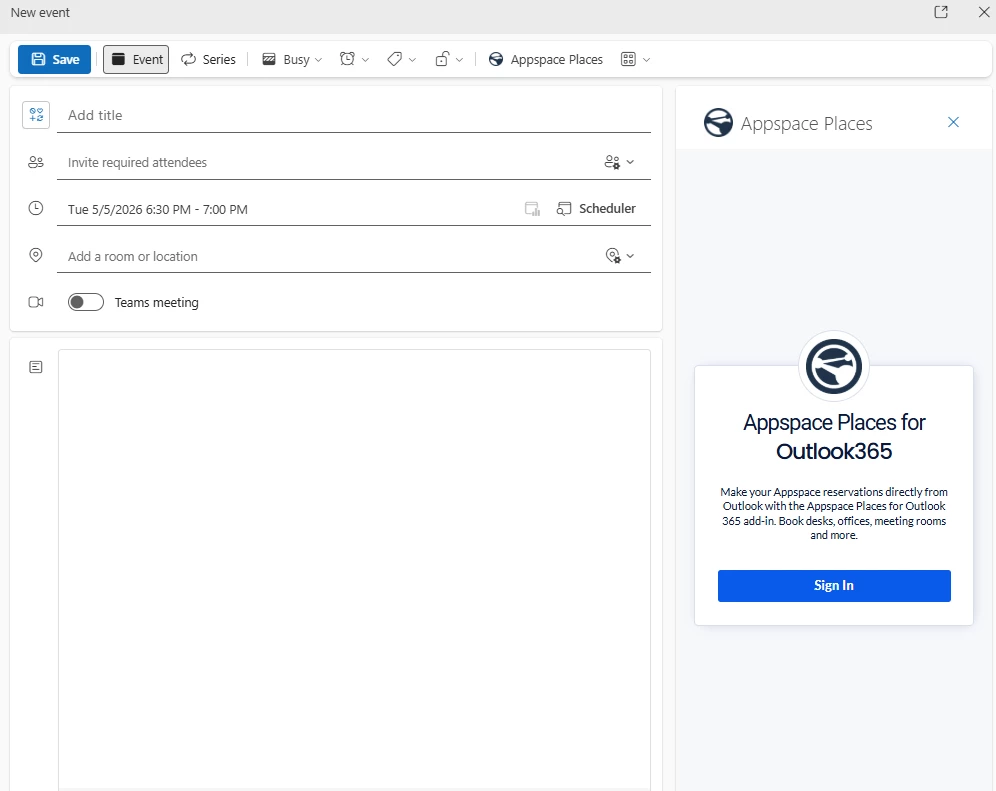
Open Outlook and click on the Appspace Places icon.
-
Check if you are prompted to log in.
-
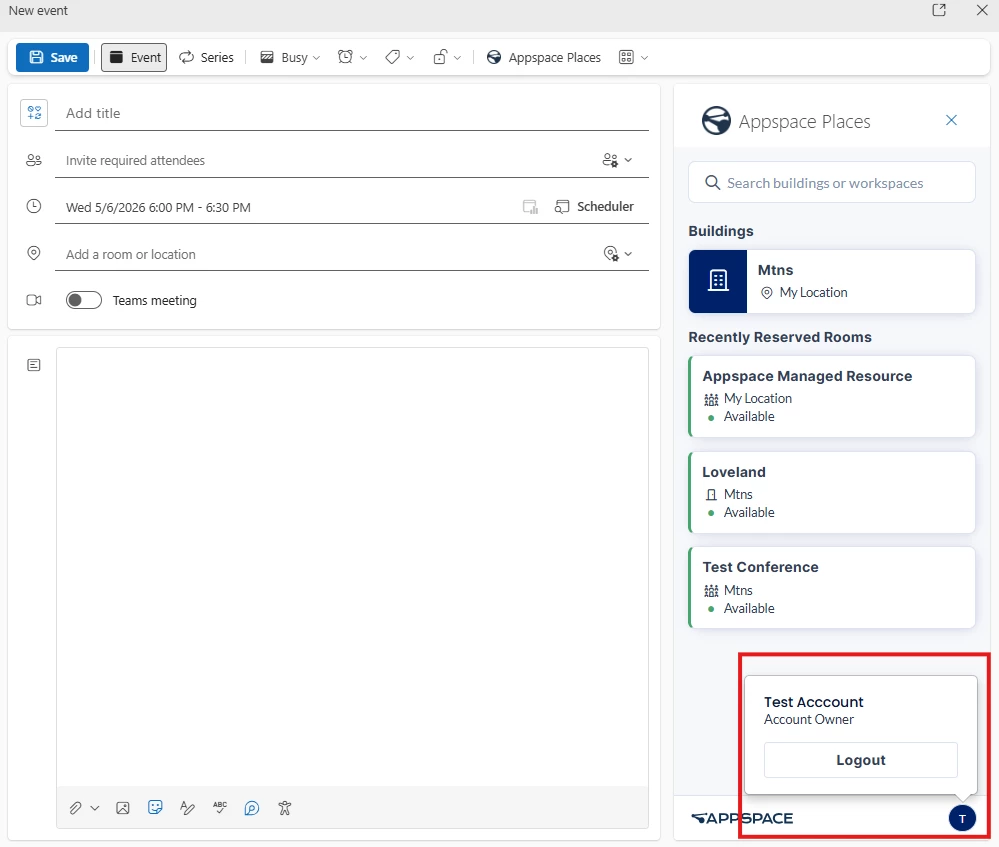
If you are already logged in but reservations are still missing, click on your profile/settings within the plugin and select Log Out.
-
Log back in immediately to refresh the authentication token.
-
-
-
Identify Managed Resources
-
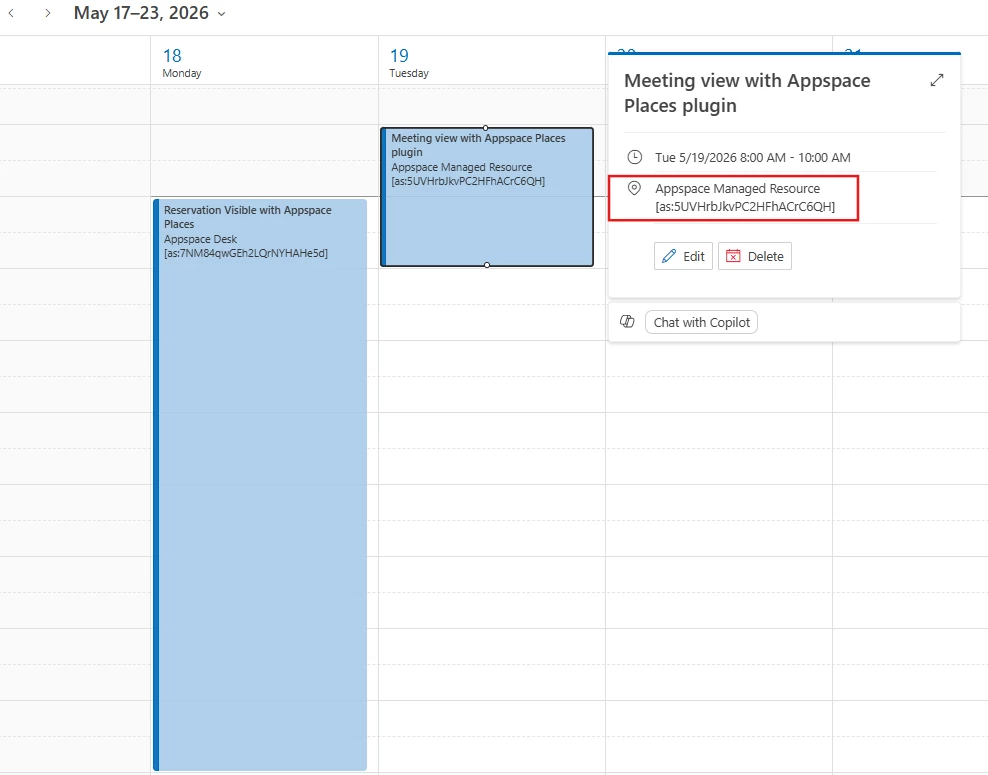
Once the plugin is working correctly, you can verify the sync by looking at the meeting location in Outlook.
-
Expected Behavior: The location field will display the name of the resource as defined in Appspace, followed by a unique, long character string (e.g.,
Conference Room A - 123abc456def...)
-
-
Note on Opting Out: If you prefer not to have your Appspace-managed resources (like desk or parking bookings) clutter your Outlook calendar, you can simply log out of the Appspace Places plugin. This will keep those specific reservations restricted to the Appspace Employee View only.