

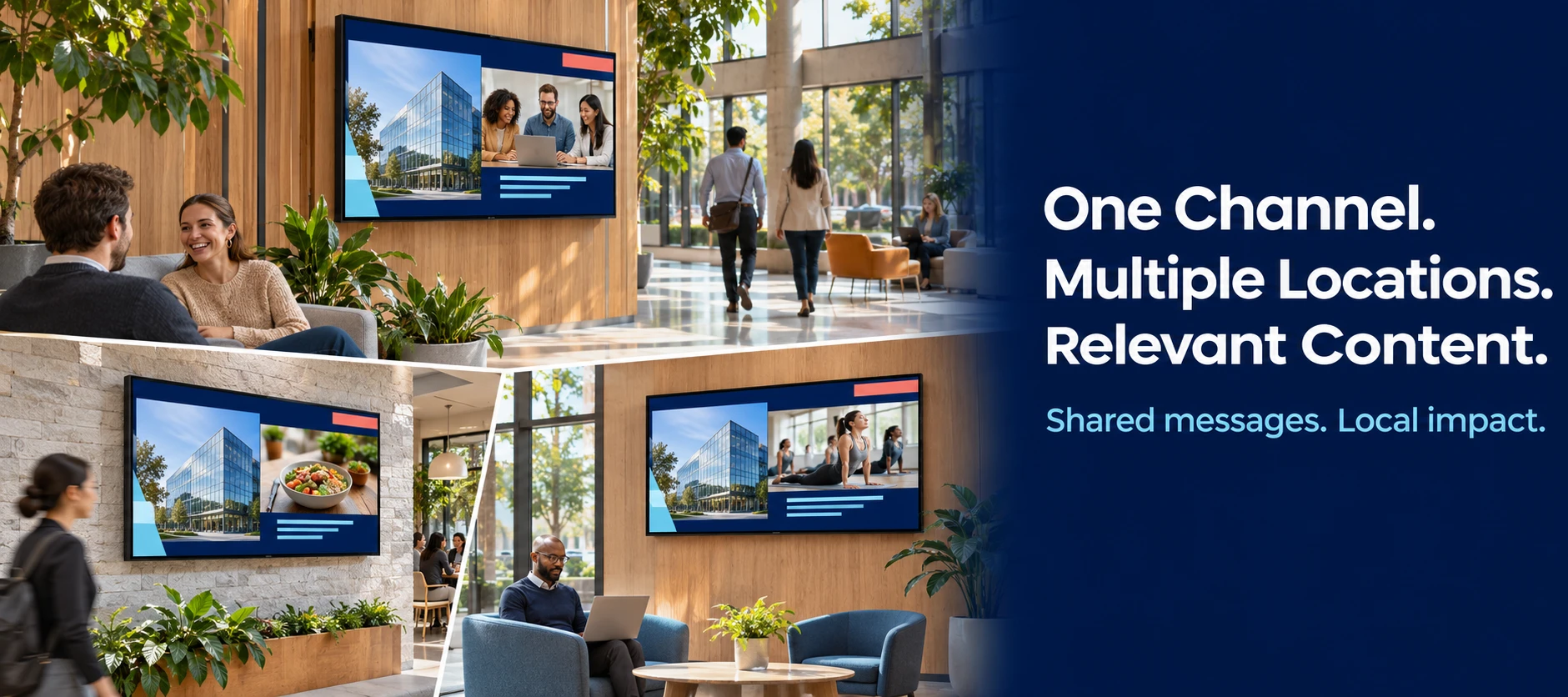


A shared signage channel can help you deliver consistent organization-wide messages while tailoring other content to the people viewing each screen. Use device tags, targeted schedules, and linked sources to bring shared and audience-specific content together without maintaining a separate distribution channel for every location.
What You Can Do
- Keep shared messages consistent: Display organization-wide announcements within a common screen layout across locations.
- Make content relevant to each audience: Use device tags and schedule rules to target messages to regions, sites, departments, business units, or other audiences.
- Share content ownership: Let regional or local teams maintain their own source content while the shared channel brings it together on the intended screens.
- Include local information: Configure supported weather and clock elements to reflect the device’s location and time zone.
Note:
Make it your own. This walkthrough is a sample implementation. Corporate, regional, and local content are examples—you can adapt the structure to your organization’s audiences, content ownership, and display needs.
What “one channel” means here: Devices are assigned one shared main channel. That channel can bring in content from several regional or local source channels, so the example does not mean that all content must be managed in a single channel.
Watch the Walkthrough
Follow this sample setup to see device tagging, local weather, targeted schedules, linked sources, and channel assignment in action. Use the steps as a pattern for your own implementation; you do not need to reproduce the sample locations or layout.
- 0:34: Locations and device tags.
- 1:59: Local time and weather.
- 2:52: Shared channel layout.
- 3:49: Scheduling and device tag rules.
- 5:42: Linked sources and local content ownership.
- 7:04: Channel assignment and playback examples.
How the Shared Channel Works
In this example, the main channel provides the common layout. Separate zones display corporate, regional, and local content. Rules on the regional and local schedules match device tags to determine which content is eligible to play. Your own setup can use the same approach with the content groupings and audiences relevant to your organization.
Example: A Tampa screen and a Long Island screen use the same main channel. Both show corporate announcements, while each shows its own regional messages, local updates, and weather.
| Device location | Regional device tag | Local device tag | Expected content |
|---|---|---|---|
| Tampa | Florida | Tampa | Corporate + Florida + Tampa |
| Long Island | New York | Long Island | Corporate + New York + Long Island |
| Chicago | Illinois | Chicago | Corporate + Illinois + Chicago |
States and cities are examples. Tags can represent departments, business units, or other audiences. Device location, device tags, and weather settings are separate settings; assigning a location does not replace configuring the others.
Key takeaway
One shared channel, multiple content sources. Devices are assigned the shared main channel, which can bring together content maintained in separate regional or local source channels.
Sample Setup: Corporate, Regional, and Local Content
The following steps describe the configuration shown in the video. Adapt the tags, zones, schedules, and source channels to your own content plan.
1. Plan Your Content and Ownership
- Identify the corporate content everyone should see and the messages that vary by region or site.
- Choose consistent regional and local tag names.
- Prepare source content and decide who maintains each source.
- Confirm access to edit channels, manage device tags and properties, and assign channels.
- Choose two pilot devices in different locations. Record their existing channel assignments, tags, and relevant properties so you can restore them if needed.
Confirm that your environment and players support the configuration. Console labels may differ from those shown in the video.
2. Configure Your Devices
Add Regional and Local Tags
- Open Devices and select the intended device.
- Use the tag action to add its regional and local tags. For Tampa, add Florida and Tampa.
- Save and verify the tags on the device.
- Repeat for the remaining devices. Use bulk actions when applying the same tag to multiple devices.
Shared corporate content does not need a regional or local targeting rule when it should appear on every device assigned to the main channel.
Set Local Weather and Time
- Open the device and go to Settings > Device Properties.
- Find or add card.weather.location.
- Enter the location accepted by your weather card, save, and confirm the value is retained.
- Verify the device time and time zone for the clock used in your layout.
Confirm that the weather card uses the device property. Test the city it resolves to on the device; a channel editor preview may show a different location.
3. Build the Shared Layout
- Open Channels and create or adapt a Multizone Signage Channel.
- Match the layout dimensions and orientation to your displays.
- Create clearly named zones for Corporate Content, Regional Content, and Local Content.
- Add the clock, weather, branding, and background elements you need.
- Add shared corporate assets to the corporate zone and save.
The video starts with an existing layout. You can use your own design while following the same targeting pattern.
4. Create Targeted Regional and Local Schedules
Use scheduling at the right level: Layout scheduling controls which complete layout plays. Playlist scheduling controls the playlists inside a Media Zone. This example uses zone playlists to vary regional and local messages within a shared layout.
- Open the Local Content zone playlist.
- Open its default playout properties, turn on Enable Playlist Scheduling, and save.
- Select Add to create a schedule named for a location, such as Tampa.
- Set its operating dates, days, and times, and review its playout settings.
- Open Tag Rules. Configure rule-based targeting with Device Tag > Contains > Tampa.
- Save the rule and schedule, then populate the schedule with Tampa content.
- Repeat for each location.
- Repeat in the Regional Content zone, using regional tags such as Florida or New York.
Review which devices match each rule. Extra tags or overlapping rules can make unintended schedules eligible. Test any intentional overlap.
Review the Default Schedule: The video leaves its playlist empty. Choose whether to provide content suitable for all viewers or leave it empty, then test the resulting behavior when no targeted schedule matches.
5. Let Local Teams Maintain Their Own Content
Use a linked source when local or regional teams should update their own content without editing the shared layout.
- Create or identify a source channel for the team, such as Tampa Local Content.
- Give the team the permissions needed to maintain that source. Confirm access with an administrator.
- Open the matching schedule in the main channel, such as Local Content > Tampa.
- Choose Link source from the Add menu, select the source channel and applicable media zone, and save.
- Add a test item to the source and verify that it reaches the intended devices through the main channel.
Important:
Use a supported source channel. Linked sources support Fullscreen and Multizone Digital Signage Channels. Playlist Channels are not supported as channel sources for this workflow.
Set scheduling in the destination: Linked sources supply content items; they do not carry over the source channel’s content schedules or playout properties.
Device tags control playback targeting. User permissions control who can edit content. Verify both so a local contributor can update the intended source without changing other sites or the corporate layout.
6. Assign the Main Channel and Test
- In Devices, select the pilot devices and choose Assign Channel.
- Select the shared main channel. If needed, change the selector filter from Current location to All locations, subject to your access.
- Save and confirm that the devices show the correct assignment and have synchronized.
- Check playback on each physical display before extending the configuration.
- Shared content: Both screens show the same corporate messages and layout.
- Targeted content: Tampa shows Florida and Tampa messages; Long Island shows New York and Long Island messages. Neither shows the other site’s local messages.
- Local information: Weather resolves to the intended city and the clock shows the correct time.
- Source updates: A test source update appears after synchronization.
- Schedule behavior: Check active and inactive periods, overlapping rules, and a device without matching tags.
- Presentation: Content fits each zone and is readable at the display’s normal viewing distance.
If the pilot does not behave as expected, restore the previous channel assignments while you correct and retest the configuration.
Quick Troubleshooting
- Wrong regional or local content: Compare device tags with schedule rules. Review overlapping matches and the Default Schedule’s content.
- An empty targeted zone: Check matching tags, schedule dates and times, content availability, and device synchronization.
- Wrong weather: Check card.weather.location, the resolved city, and the weather card’s use of that property.
- Updates are missing: Confirm saved edits, the main channel assignment, connectivity, synchronization, and that the content is linked rather than separately added.
- Preview differs from playback: Verify targeting, local information, and content fit in the device context and on the physical screen.
Need help applying this structure to your organization? Contact your Appspace CSM or account team for guidance.