
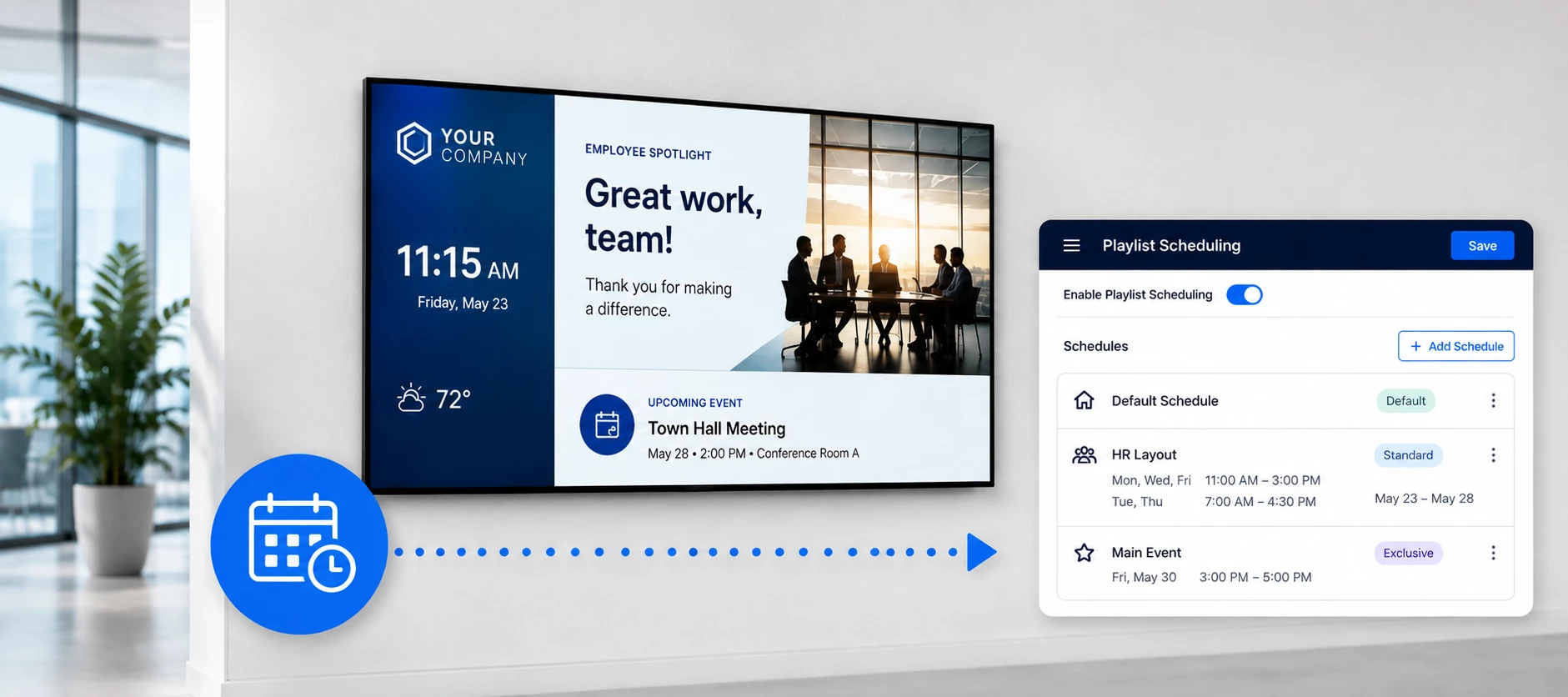




Playlist scheduling gives you more control over when specific content plays within a Digital Signage Channel. You can create recurring schedules for different teams, departments, events, or campaigns while maintaining default content that continues to play when no other schedule is active.
Enable Playlist Scheduling
Start by creating or opening a full-screen Digital Signage Channel and adding the content you want to use as your primary playlist.
- Open the channel and add your content.
- Open Playout Properties.
- Select Enable Playlist Scheduling.
- Save your changes.
When scheduling is enabled, Appspace automatically creates a default schedule. This represents the content that normally plays when another schedule is not active.
Note: In a multi-zone channel, this option appears as Enable Layout Scheduling.
Create Additional Schedules
You can create schedules for specific departments, campaigns, or other content owners without replacing your primary channel configuration.
For example, an HR team could have its own schedule that plays:
- Monday, Wednesday, and Friday from 11:00 AM to 3:00 PM.
- Tuesday and Thursday from 7:00 AM to 4:30 PM.
You can also define a date range or allow the schedule to run indefinitely.
Standard vs. Exclusive Schedules
When creating a schedule, you can determine how it interacts with the default content.
| Standard Schedule | Scheduled content plays in conjunction with the default schedule. |
| Exclusive Schedule | Only the scheduled content plays during the defined time. Default content is temporarily ignored. |
Exclusive scheduling can be especially useful when you need to temporarily take over a display for a specific event or message.
Connect a Schedule to a Library Folder
A scheduled playlist can also be connected directly to an Appspace Library folder.
This allows teams to manage their own content without needing access to edit the Digital Signage Channel itself. For example, you could connect an HR schedule to an HR Library folder. When HR adds approved content to that folder, the content becomes available to the scheduled playlist.
This can simplify ongoing content management while keeping control of the channel configuration with the appropriate administrators.
Use Exclusive Scheduling for Events
Exclusive schedules can also support temporary channel takeovers.
For example, if an event is happening next Friday from 3:00 PM to 5:00 PM, you could:
- Create a new schedule for the event.
- Mark it as Exclusive.
- Select the event date.
- Schedule it from 3:00 PM to 5:00 PM.
- Add the event content.
During that time, the event content takes over the channel. When the schedule ends, the channel returns to its normal scheduled content.
Ways to Use Playlist Scheduling
Scheduling can support a variety of digital signage scenarios, including:
- Department content — Give HR, IT, or other teams dedicated content windows.
- Menus — Schedule different menus based on time of day or day of the week.
- Special events — Temporarily take over displays during meetings or events.
- Holiday messaging — Schedule seasonal content well in advance.
- Service information — Display different information based on operating hours.
Schedules can be configured in advance, giving teams greater flexibility to plan content without repeatedly modifying the channel.
💡 Need help setting up playlist scheduling? Contact your Appspace Account Executive or Customer Success Manager for assistance.