
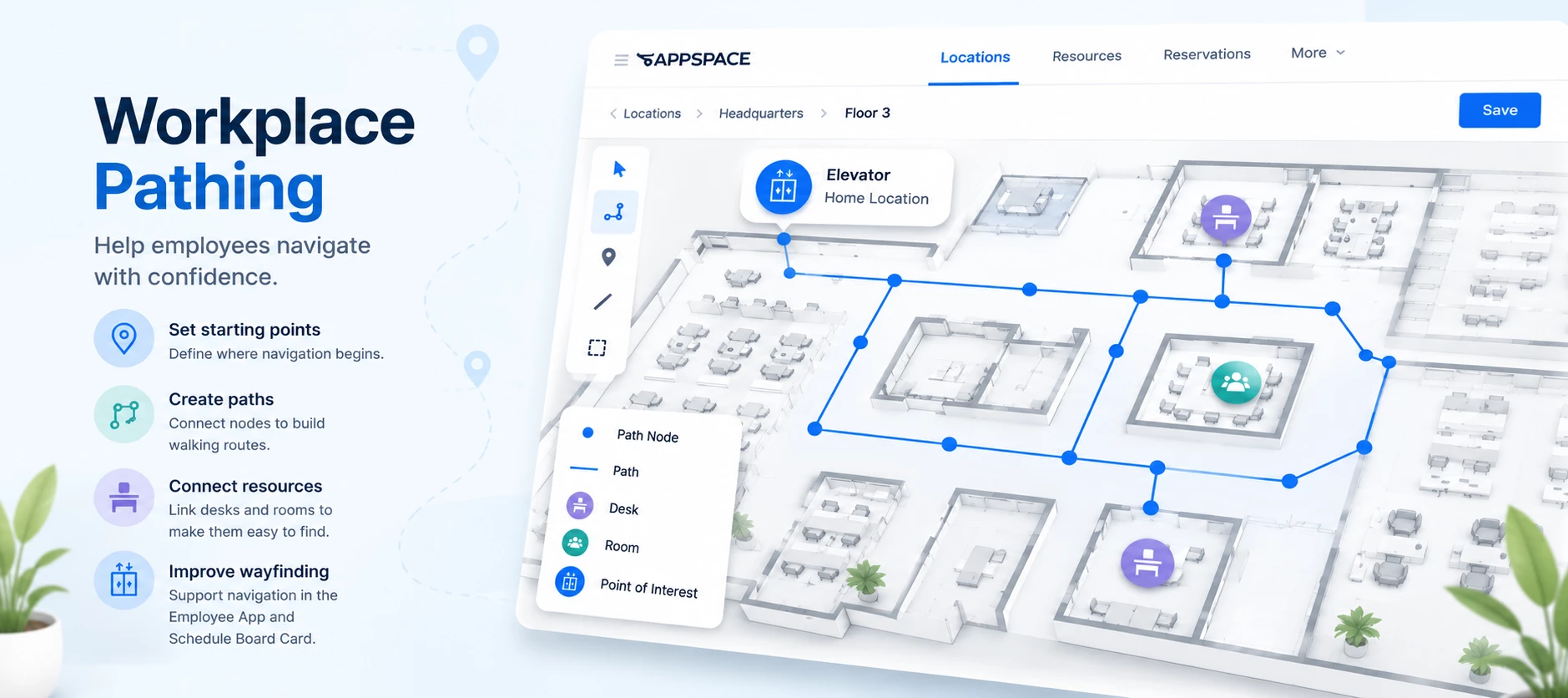




Pathing creates the routes employees can use to navigate from a starting location to desks, rooms, and other workplace resources on a map.
When pathing is configured for your workplace maps, it can support wayfinding experiences in the Employee App and the Schedule Board Card, helping employees understand not just where a resource is located, but how to get there.
In this walkthrough, you'll see how to establish a starting point, create the path network, and connect workplace resources so they can be used for navigation.
Start with Your Workplace Map
Pathing is configured on an existing workplace map under the Locations tab.
Before you begin, the applicable workplace resources, such as desks and rooms, should already be positioned on the map. Pathing is then added around those resources to represent the routes employees can use to move through the space.
Choose a Starting Point
Every path needs a place for navigation to begin. Choose a recognizable location employees are likely to use as an entry or reference point, such as an elevator or stairway.
If that location is not already represented on the map, add it as a resource and configure the appropriate Point of Interest type.
For example, you can add an elevator as a Point of Interest without making it reservable. Points of Interest can then be used to help establish navigation through the workplace.
For multi-floor navigation: The Point of Interest may also need to be associated with the appropriate resource information so it can be used to connect paths between floors.
Set the Home Location
Once the starting location is available on the map, open Paths and add it as the starting point.
Set this location as the Home Location for the floor. This establishes the point from which navigation can begin when an employee requests directions.
Build Your Path Network
Pathing works by creating a network of connected nodes across the floor map. Think of it as connecting the dots along the routes employees would naturally walk.
- Add nodes along hallways and other primary walking routes.
- Connect the nodes to create continuous paths through the floor.
- Extend the network toward the workplace resources employees may need to find.
- Connect those resources to the appropriate path.
You do not need to make every node perfectly aligned when building the initial path. Start by creating the primary routes through the space and refine them afterward.
Connect Workplace Resources
Once the main routes are established, connect the desks, rooms, and other applicable resources to the path network.
A resource does not necessarily need a separate path node positioned directly beside it. You can connect the resource to an existing path where appropriate.
Repeat this process for the resources employees should be able to navigate to.
Refine Your Paths
After the path network is in place, zoom out and review how the routes move through the floor.
You can continue adjusting the map by:
- Moving nodes to better align with hallways and walking routes
- Straightening path segments
- Adding additional nodes where a route needs more detail
- Connecting additional workplace resources
Tip: Focus on getting the overall path structure in place first. Nodes can be moved, added, and refined as needed.
How Pathing Supports Wayfinding
Once your workplace resources are connected to the path network, the map has the information needed to calculate a route between the configured starting point and a destination.
This pathing can support wayfinding experiences such as:
- Providing directions to desks, rooms, and other workplace resources
- Starting navigation from a defined Home Location
- Using Points of Interest such as elevators as part of navigation
- Supporting navigation between floors when the appropriate locations are configured
See It in Action
Watch the video above to see the complete pathing configuration process, including:
- Adding an elevator as a Point of Interest
- Creating and setting the Home Location
- Adding pathing nodes to a workplace map
- Connecting nodes to create walking routes
- Connecting workplace resources to the path network
- Moving and refining nodes after the initial path is created
Once the path network is configured, it can be used to support wayfinding experiences that help employees navigate the workplace using the Employee App and Schedule Board Card.