Maintain Your Content Standards: A Guide to Content Approvals in Spaces
Content Approvals allow Community Owners, Moderators, and designated users to review new, featured, or pinned posts before they are published within a Space.
Key Benefits
- Maintain Content Standards — Ensure all posts align with your organization's quality and brand guidelines before they go live
- Prevent Unauthorized Publishing — Minimize risk by reviewing sensitive or regulated information before it reaches a broad audience
- Improve Team Oversight — Manage high volumes of content efficiently through centralized review queues and automated status tracking
What This Guide Covers
- Enabling Content Approvals
- Selecting actions and approvers
- Sending content for approval
- Reviewing approval requests
Prerequisites
- Platform license — Required to enable content approvals on the Admin Console
- Premium license — Required to review content approvals on the Community
- Community Owner role — Required to enable content approvals and assign approvers
- Existing Community, Topic, or Channel — Required to host the workflow
Step One: Enabling Approvals
Content Approvals enable designated users to review and authorize content added to communities, topics, and channels to ensure all shared content meets established standards.
To activate this feature:
- Navigate to Spaces in the Admin Console.
- Select a specific space.
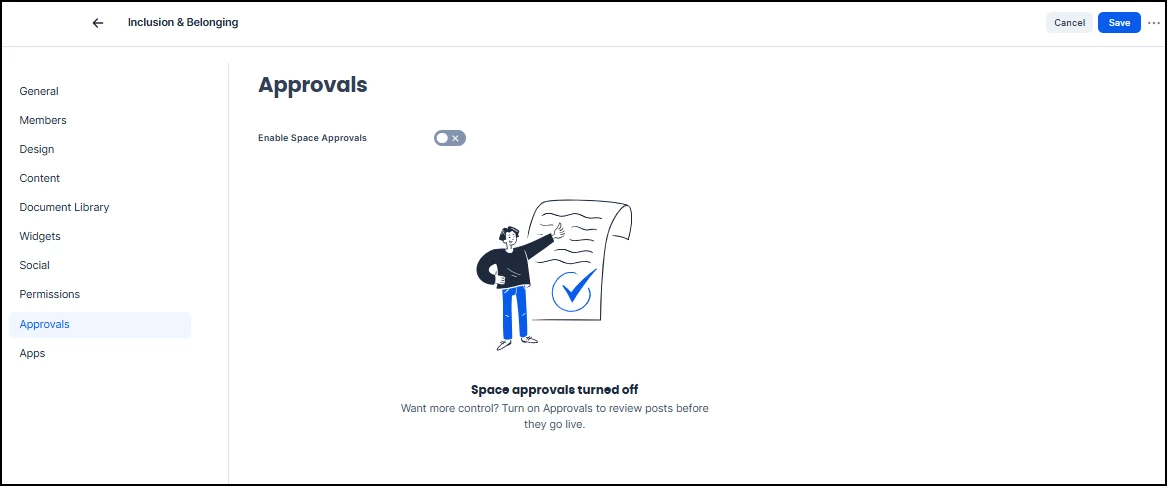
- Click the Approvals tab.
- Toggle Enable Space Approvals to the ON position.
Account Owners and Owners of the Space can also toggle this on in the space's Settings on the Employee Experience.
Step Two: Selecting Actions and Approvers
After enabling approvals, define the specific actions that require review and designate the authorized reviewers for the space.
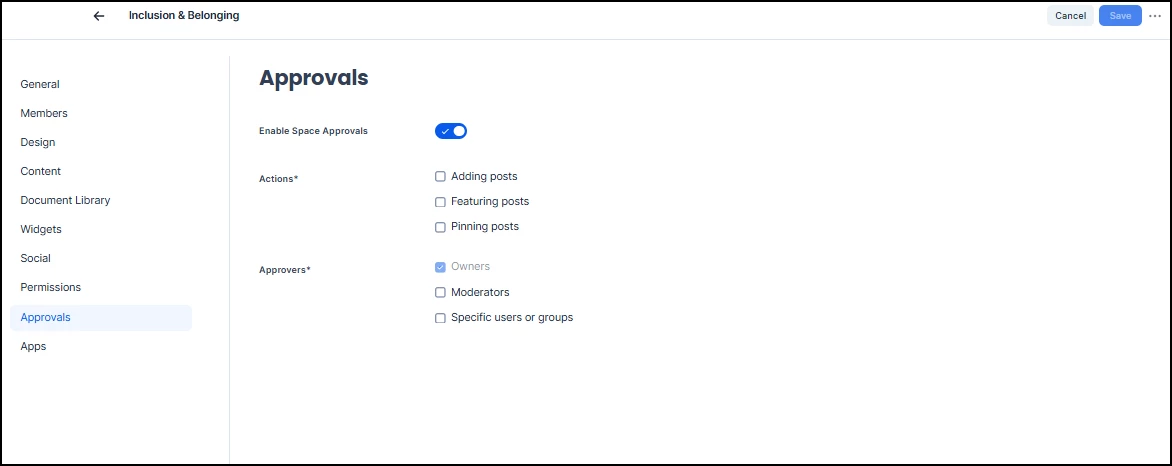
Select the actions for Adding Posts, Featuring Posts, or Pinning Posts. Posts can include Quick Posts, Stories, and Pages. Once selected, these actions will remain pending until an authorized user grants approval.
Space Owners are included by default in all workflows. You may also designate all Moderators or assign specific users and groups to act as reviewers.
Step Three: Sending Content for Approval
Users attempting to add, feature, or pin a post receive an automated notification that the submission requires approval.
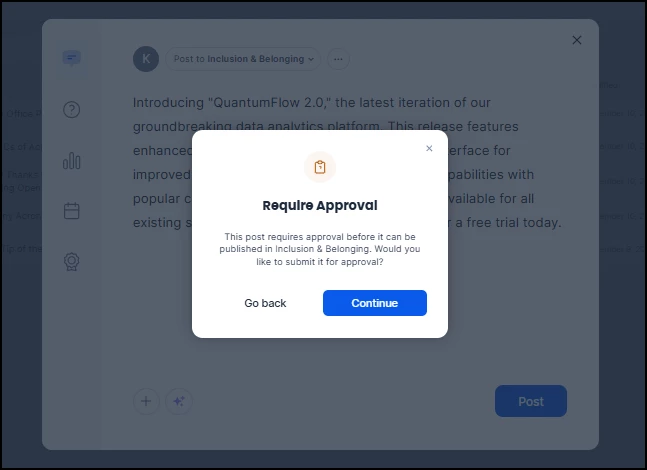
A follow-up notification is triggered once the content is either approved and published or rejected.
Step Four: Reviewing Approval Requests
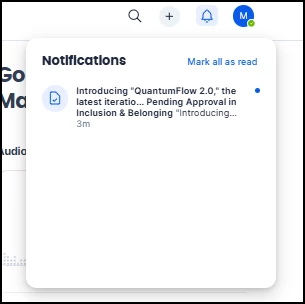
Space owners and designated approvers receive notifications in the Employee Experience when content requires review.
- Select the notification to view the pending request.
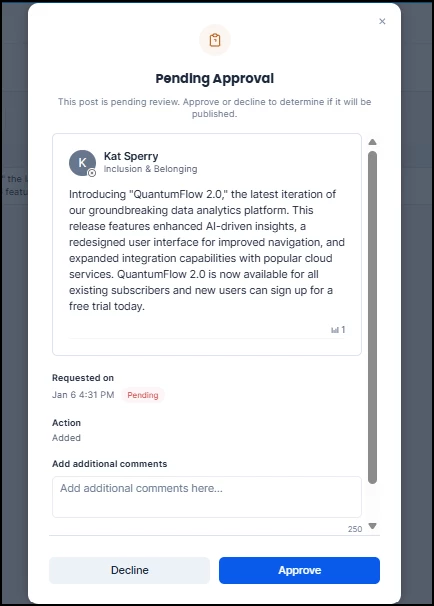
- Review the submitted content.
- Click Approve or Decline.
- (Optional) Add comments to provide feedback or justification for the decision.