




Keeping your BrightSign players up to date helps ensure they receive the latest Appspace enhancements, security improvements, and bug fixes.
BrightSign App updates require an opt-in setting. If automatic updates are not enabled, your players may continue running older versions of the Appspace App and miss important improvements.
Check Your BrightSign Software Update Setting
To receive Appspace App updates automatically, make sure the Software Updates toggle is enabled for your BrightSign players.
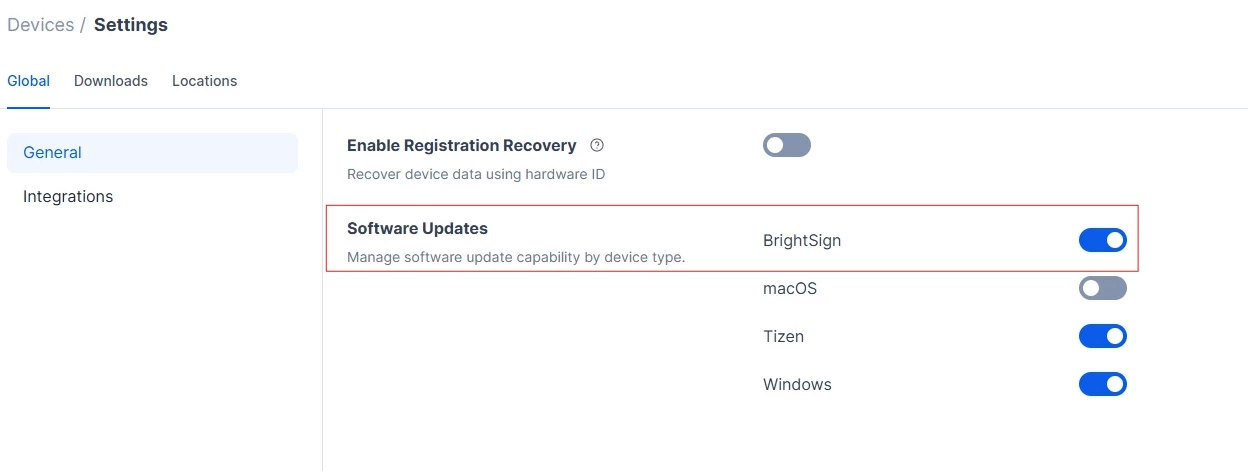
When this setting is enabled, BrightSign devices can automatically download and install approved Appspace App updates.
Note: Once your device's app version is updated to 2.92 and platform version is updated to 2601.4.0, the BrightSign App Updater device task will no longer work, and you will be instructed to use the Automatic/Manual scheduled Software Updates.
Why this matters
- Stay current with the latest Appspace features.
- Receive important updates for security, stability, and performance.
- Reduce manual maintenance by limiting the need for hands-on updates.
- Keep deployments consistent across your BrightSign device network.
Need Help?
Use the step-by-step guide Simplify Your BrightSign Deployment: A Step-by-Step Guide to Configuring Software Updates to verify and enable software updates on your BrightSign players.
The guide walks through the configuration process so you can confirm that your players are set up to receive approved Appspace App updates automatically.
Take a Minute to Verify Your Settings
If you have not reviewed your BrightSign update settings recently, now is a good time to confirm that Software Updates is enabled.
This small setting helps your devices stay current and continue benefiting from the latest Appspace improvements.