Smart Relocations: User Guide
Introduction
This guide provides information on the configuration, prerequisites, and proper use of the Smart Relocations feature. This feature enables Location Admins to schedule maintenance for resources, making them unavailable for reservations. When a user attempts to reserve a resource, the system will either suggest a new resource or send a notification asking organizers to rebook.
Key Benefits
The Smart Relocations feature provides the following key benefits:
- Auto-Resolve Conflicts: Automatically flags booking conflicts, alerts organizers, and suggests alternatives.
- Simple Room Management: Automates management of room status to reduce manual errors.
- Better Booking Control: Improves visibility and consistency for teams managing space availability.
What This Guide Covers
This guide will cover the following topics:
- Setting up scheduled maintenance.
- Navigating the Smart Relocations options.
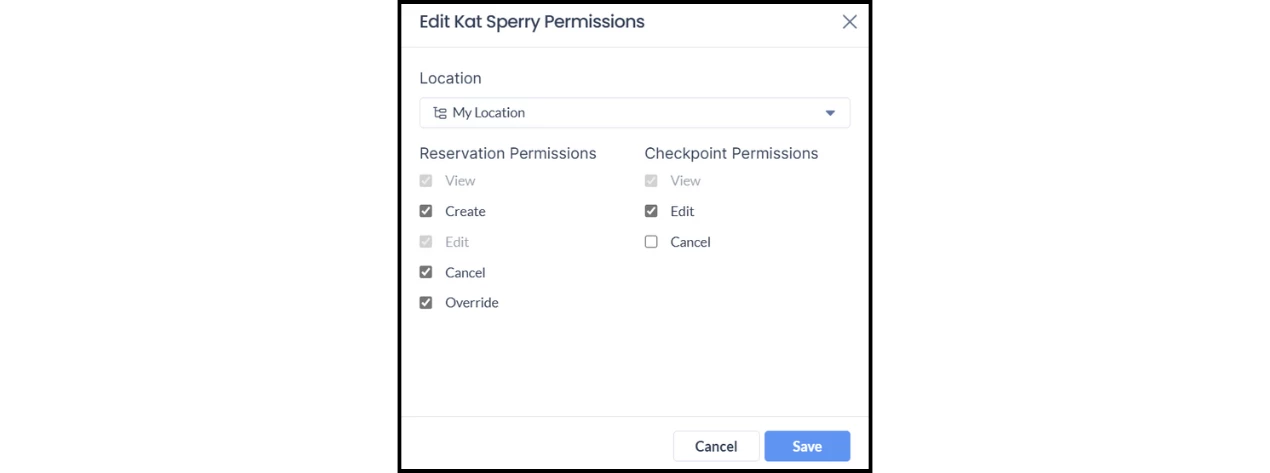
- Configuring Concierge permissions to override and relocate reservations.
Prerequisites
Before configuring Smart Relocations, you need to meet the following requirements:
- Resources mapped in Appspace.
- Appspace Reservations system configured and active.
- Platform license.
- Location Admin or Account Owner role.
Configuration and Management
Step One: Set up Scheduled Maintenance
When you schedule maintenance for a floor, zone, or specific resource, it automatically becomes unavailable for reservations during that period.
To set up the maintenance schedule:
- In the Reservations section, click the Resources tab.
- Use the location hierarchy to select the floor, zone, or specific resource that requires maintenance.
- Next to your selection, click the ellipsis (...) and then Edit.
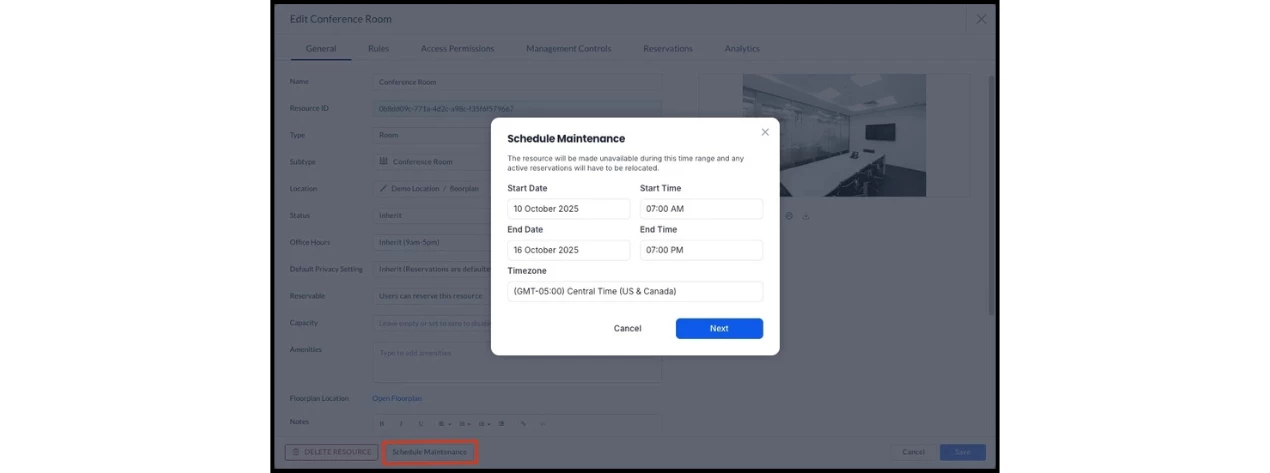
- On the Edit resource window, click the Scheduled Management button.
- Set the exact period for the maintenance by selecting the Start Date/Time and End Date/Time. Adjust the Time Zone if necessary.
- Click Next.
Step Two: Choose a Smart Relocation Option
If the scheduled maintenance affects any existing bookings, a prompt will appear asking you to choose how to handle the conflicts. You have two options:
1. Review relocations (Automated)
This option uses the smart relocations feature to automatically find and move the affected reservations to an available, suitable resource. Once the changes are applied, the organizers will be automatically notified of their updated reservation details.
- Note: This feature only works for Appspace resources.
2. Let organizers relocate (Manual)
This option sends a notification to the organizer of each affected reservation, informing them of the conflict. The organizers will then be responsible for manually resolving the conflict and rebooking their event.
- Note: This workflow applies to all resources, including those from third-party providers.

Option One: Review Relocations (Admin-Controlled)
This option is ideal when admins want to control where reservations are moved instead of notifying the organizers to rebook manually.
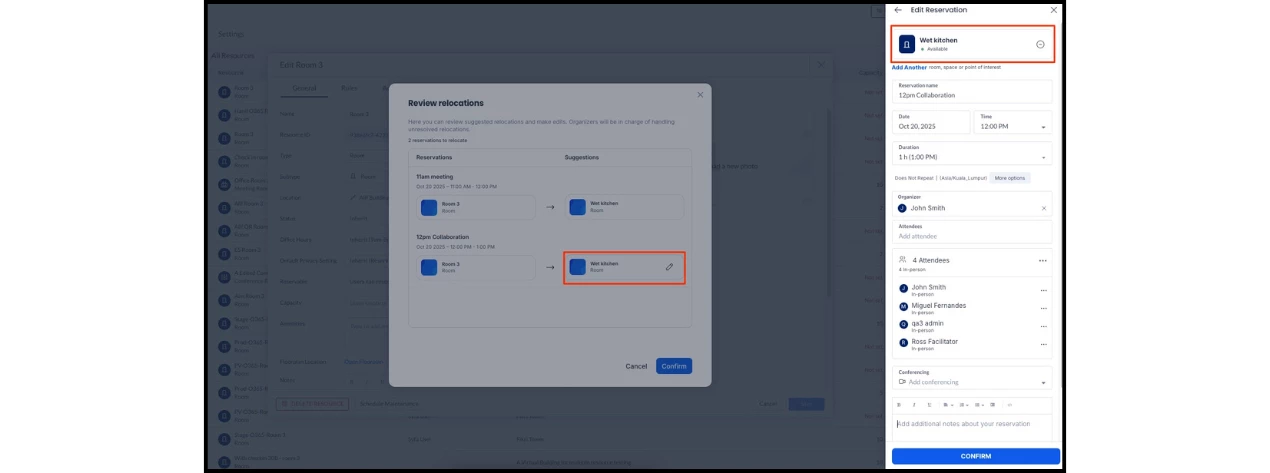
- Click Next to view the list of reservations affected by the maintenance.
- To automatically resolve all conflicts at once by applying the suggested resources, click Next again.
- If the system can't find an alternative room, click No alternative resource available to manually edit the booking (e.g., change the date, time, or remove the affected room).
- To resolve conflicts individually, click the pen icon next to a suggested resource to apply it as the replacement in the Edit Reservation window and then click Confirm.
The Review relocations window will close automatically once all reservation conflicts have been resolved.
Option Two: Let Organizers Relocate (Organizer-Controlled)
This option is perfect for admins who prefer the organizer to decide on the best replacement resource for their reservation.
- Click Next.
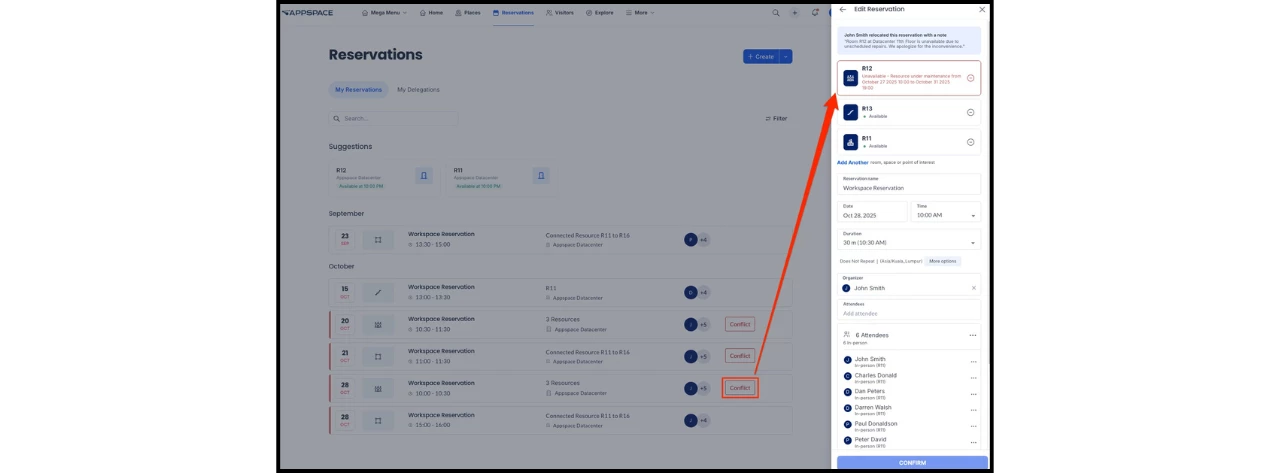
- Enter a Reason for Relocation to provide a custom message (e.g., "Resource unavailable due to plumbing repair"). This note will be visible in the Edit Reservation pane.
- Click Confirm.
The system will notify the organizers of any affected reservations. The reservation will also be flagged with a Conflict icon in Reservations. When an organizer views the reservation (in either Admin View or Employee Experience), the details of the scheduled maintenance will be shown in the Edit Reservation pane.
Setting up Concierge Permissions
Concierge users can also override and relocate existing reservations from the Concierge view in the Employee Experience, if given permission. They will have the same two options to reallocate the resource themselves or let the organizer know about the conflict.
To set up the Concierge permissions to override:
- Go to Reservations > Settings > Concierge in the Admin Console.
- Click the ellipsis and edit button next to the Concierge user you want to add the permission to.
- In the edit window, select the Override permission and then click Save.